Manage Organization Update time: 2025-07-23 07:34:21
Organization management includes operations such as adding sub-departments, modifying departments, deleting sub-departments, moving sub-departments, obtaining sub-department lists, adding members, deleting members, obtaining member lists, etc. GenAuth supports two operation modes: console and API & SDK.
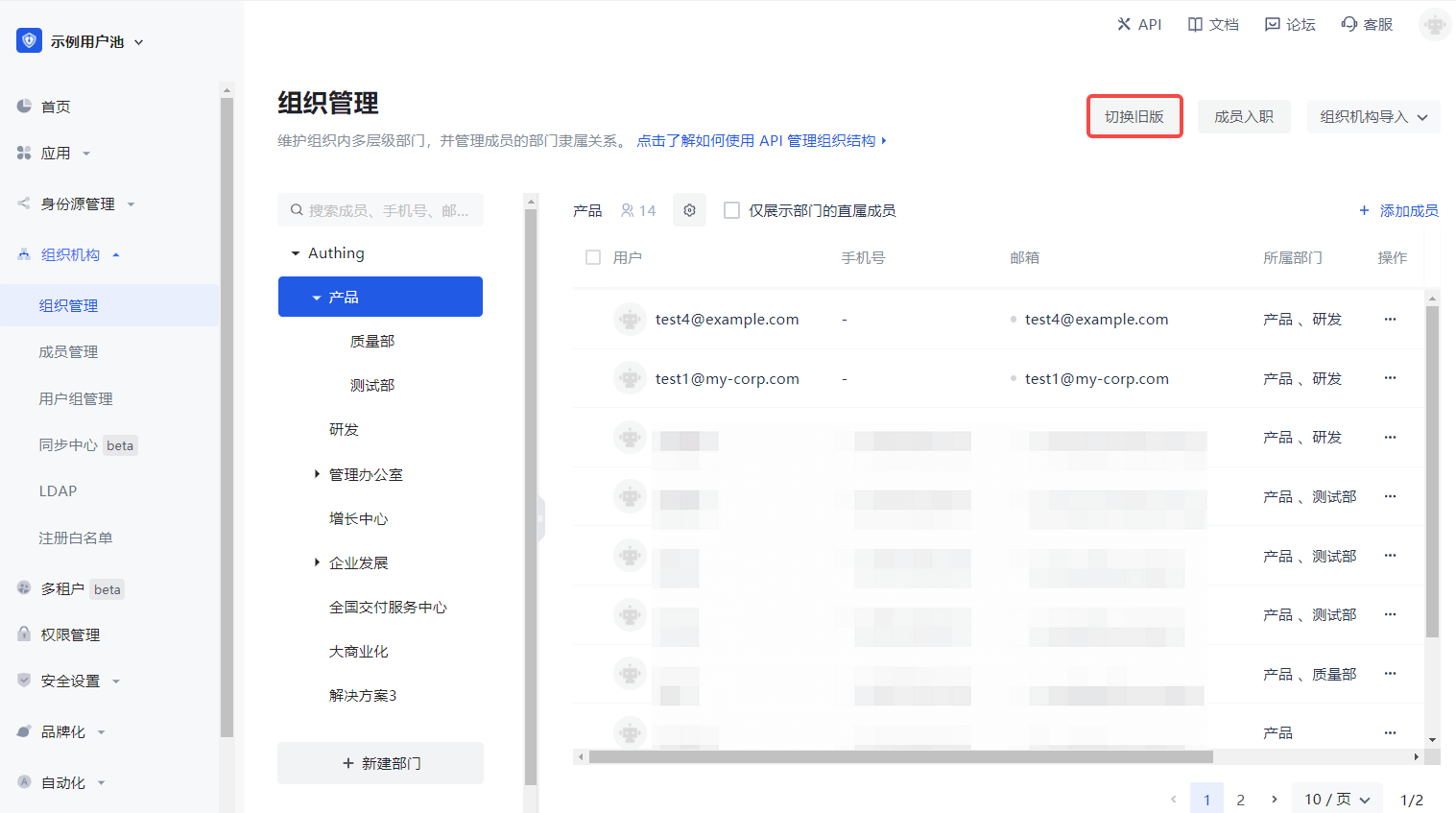
For B2E scenarios, you can see the Organization->Organization Management menu in the left navigation bar of the console, where you can manage the organizational structure and members under the corresponding hierarchical organization. For B2B and B2C scenarios, you can manage it in User Management->Organization . Currently, the new and old versions of the organization function in parallel, and you can choose according to your needs. To switch between the old and new versions, you can click the Switch Old Version / Switch New Version button in the upper right corner of the page on the Organization->Organization Management page. Add sub-department Old version You can click on one of the departments and select Add sub-department :
Enter Sub-department name , Department identifier (optional) and Department description (optional):
New version You can click on one of the departments and select Add sub-department :
Enter Department name and Department Code (optional), or change the current sub-department on the right side of the window Superior department :
Modify department Delete sub-department It should be noted that if there are sub-departments under the department to be deleted or there are members under the department/sub-department, the department cannot be deleted directly. All members must be cleared first and all sub-departments deleted. When removing members from a department, it should be noted that only members who are directly affiliated with multiple departments and the current department can be removed. If a member only belongs to the current department, it cannot be removed; in this case, the member can only be removed from the current department by resigning. The root node of the organization cannot be deleted. Select the department to be deleted and click the Delete Department button.
Delete department-old version
Delete department-new version
Move sub-department Old version Click the Move Department button behind the department to be moved in the organization tree. Select the new parent department to move to in the pop-up window: Click OK . New version Stay tuned!
Get the list of sub-departments You can click the collapse button in front of a node to expand the current node and display all child nodes under it.
Add members This function is designed to add new members under the current organization/department.
Only existing members in Member Management (User List for B2B and B2C scenarios) can be added.
Old Version To add new members, perform the following steps:
Select the organization/department in the organization list on the left.
Click the Add Member button above the user list.
Check the target user in the User List on the left side of the pop-up window (you can also search by keyword).
Click the Confirm button.
New Version To add a new member, follow these steps:
Select the organization/department in the organization list on the left.
Click the Add Member button above the user list.
Select the target user in the User List on the left side of the pop-up window (you can also search by keyword).
Click the OK button.
Delete members Only members who belong to multiple departments and the current department can be removed. If the member to be removed belongs to only one department, it cannot be removed.
You can remove in batches by checking the user first and then clicking Remove Member .
Old version To remove a member from the current organization/department, perform the following steps:
Select the organization/department in the organization list on the left.
Click the Remove Member button above the user list.
Check the member to be removed in the Remove Member pop-up window (you can also search by keyword).
Click the Confirm button.
New version To remove a member from the current organization/department, follow these steps:
Select the organization/department in the list of organizations on the left.
In the user list of the current organization/department on the right, click the row of the corresponding member to Remove Member .
Get the list of members Click any level of organization/department in the organization tree to display the direct or all members under the current department in the list on the right (depending on whether Only display direct members of the department above the user list is checked).