
¶ Manage member lifecycle
As the company grows, the number of internal applications and personnel will continue to increase. With the continuous entry and exit of employees, the frequent adjustment of the personnel organizational structure, the complex application account system within the enterprise, and the workload of administrators to manually operate accounts has increased sharply. At the same time, the lack of a unified account management control solution will also bring hidden dangers to the company's production safety, and there are often security risk cases where employees leave but the application account is not closed.
Replacing manual account management with automated Account Lifecycle Management (LCM) is the key to liberating enterprise IT personnel from the tedious and complex identity information management work involved in flexible employment. At the same time, it can also improve the overall business security factor of the enterprise by timely closing personnel accounts and reducing the authorization error rate.
Automated LCM covers multiple nodes involved in the employee lifecycle, from employee recruitment, employee employment, to employee resignation, including both administrator operations and end-user triggering behaviors, as follows:

Account lifecycle management has the following advantages:
- Improve productivity and reduce costs.
- Reduce complexity.
- More secure and compliant.
You can read more about Account Lifecycle Management .
¶ Old version of organization management
¶ Member onboarding
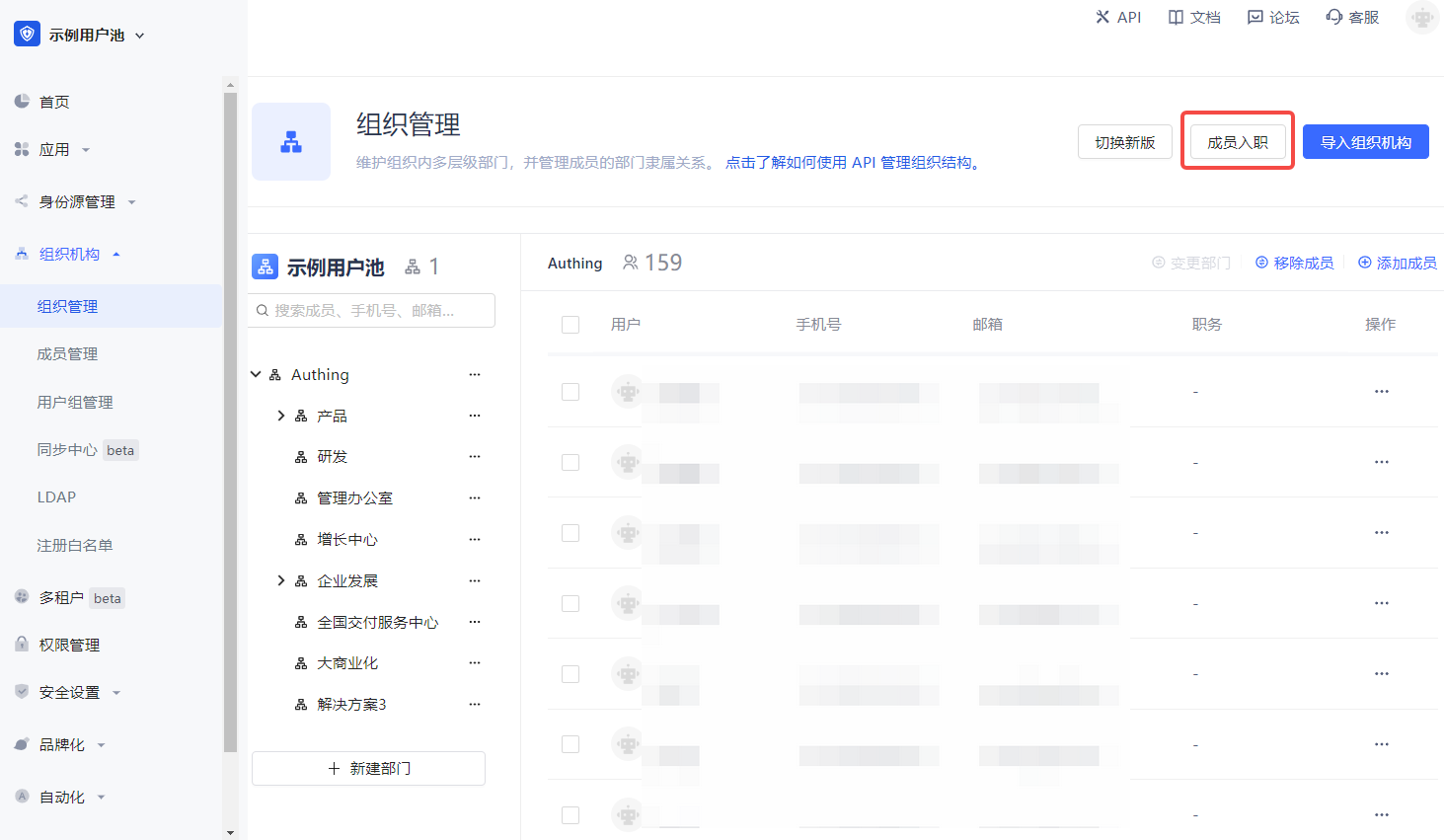
You can onboard members on the console organization management page:
¶ Create an account
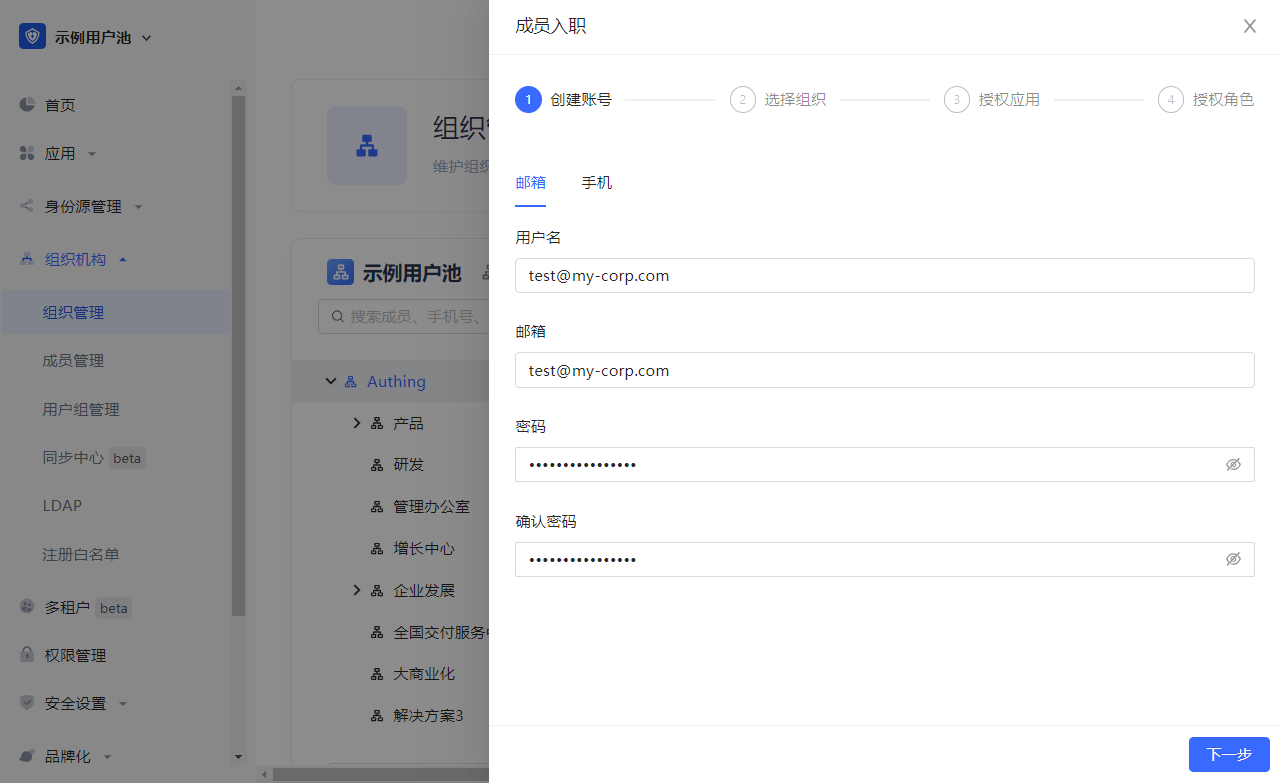
You can create an account using a mobile phone number or email address:
¶ Select an organization
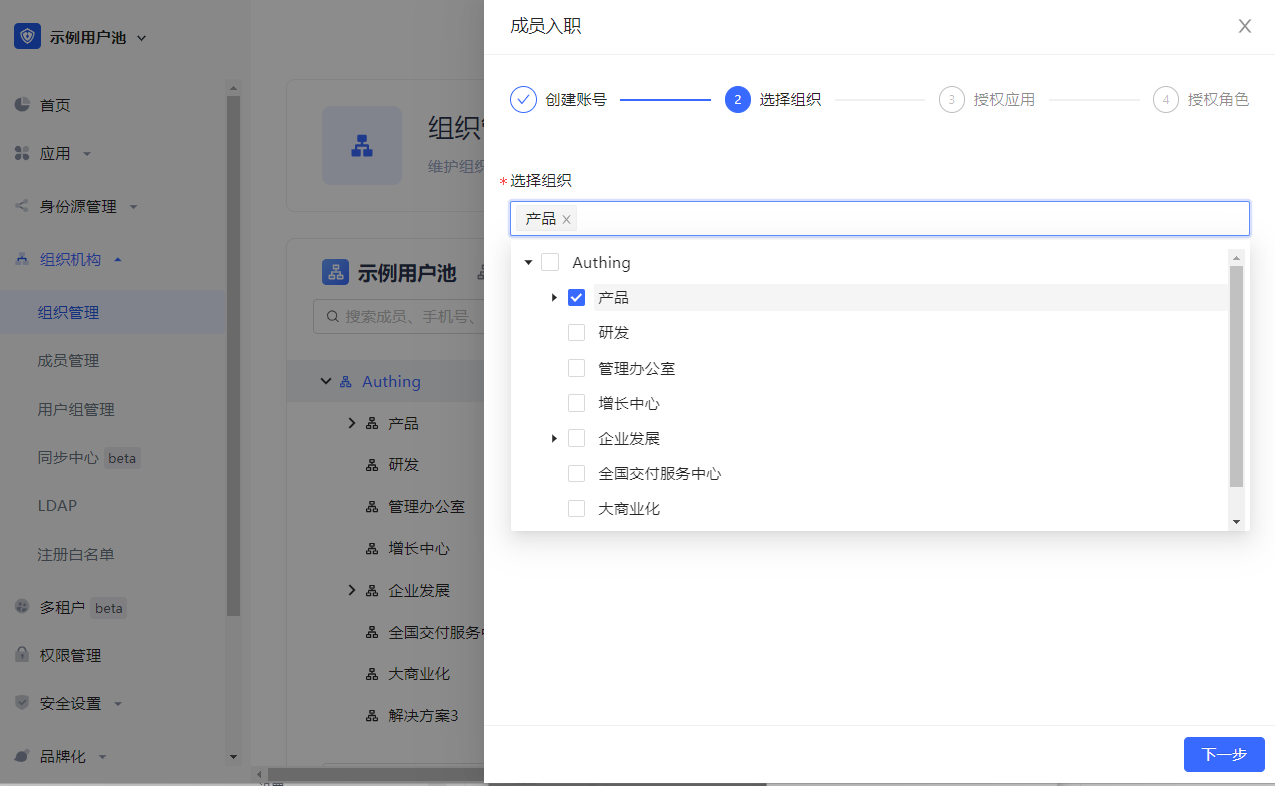
You can specify the department for new employees:
¶ Authorize Applications
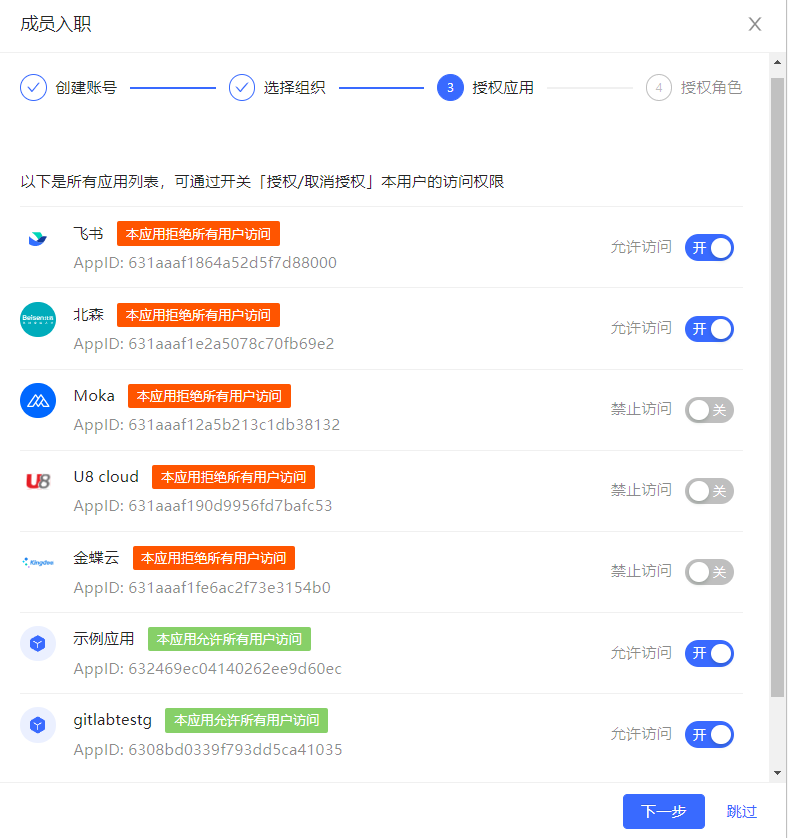
You can authorize the applications that new employees can access:
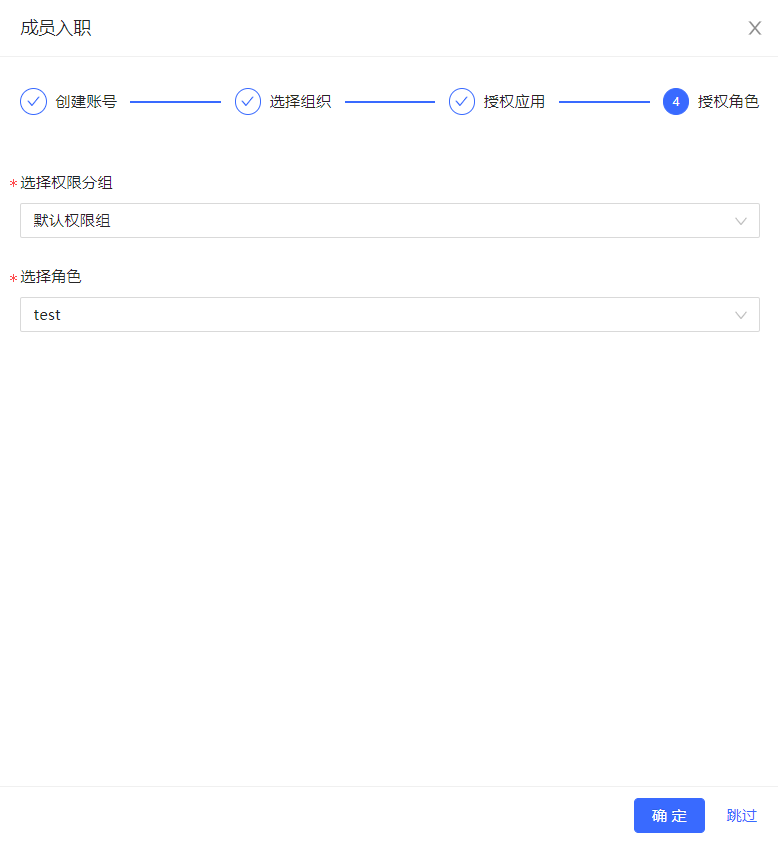
¶ Authorize Roles
You can authorize roles to the employee, so that the member automatically inherits all permissions granted to the role:
¶ View Details
Click the View Details button of an employee under the corresponding organizational level to jump to the user's details page in Member Management (for B2B and B2C scenarios, jump to the User List page).
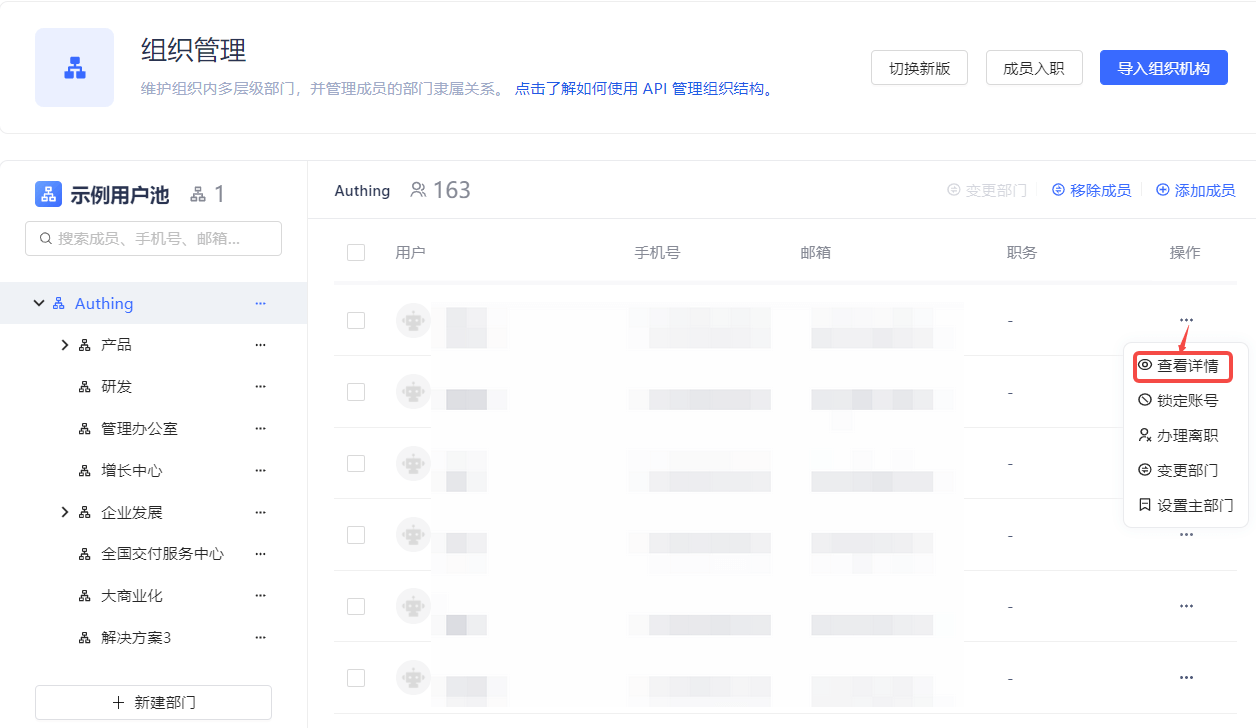
View Details Button
You can view user information, grant roles to the employee, authorize applications, and view the employee's application access log on the employee details page.
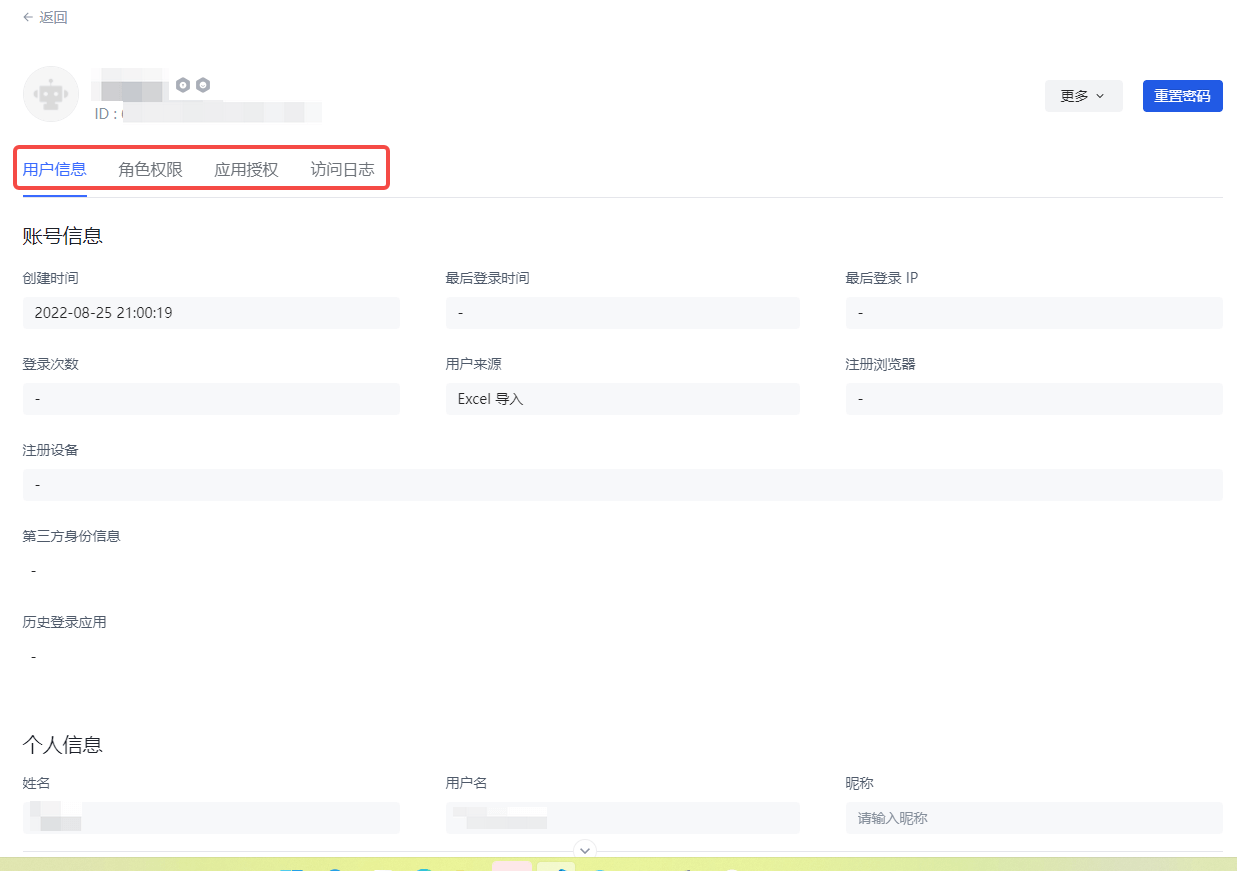
View Employee Details
¶ Lock / Unlock Account
You can temporarily lock an employee's account. After locking, the user cannot log in to the application until it is unlocked.
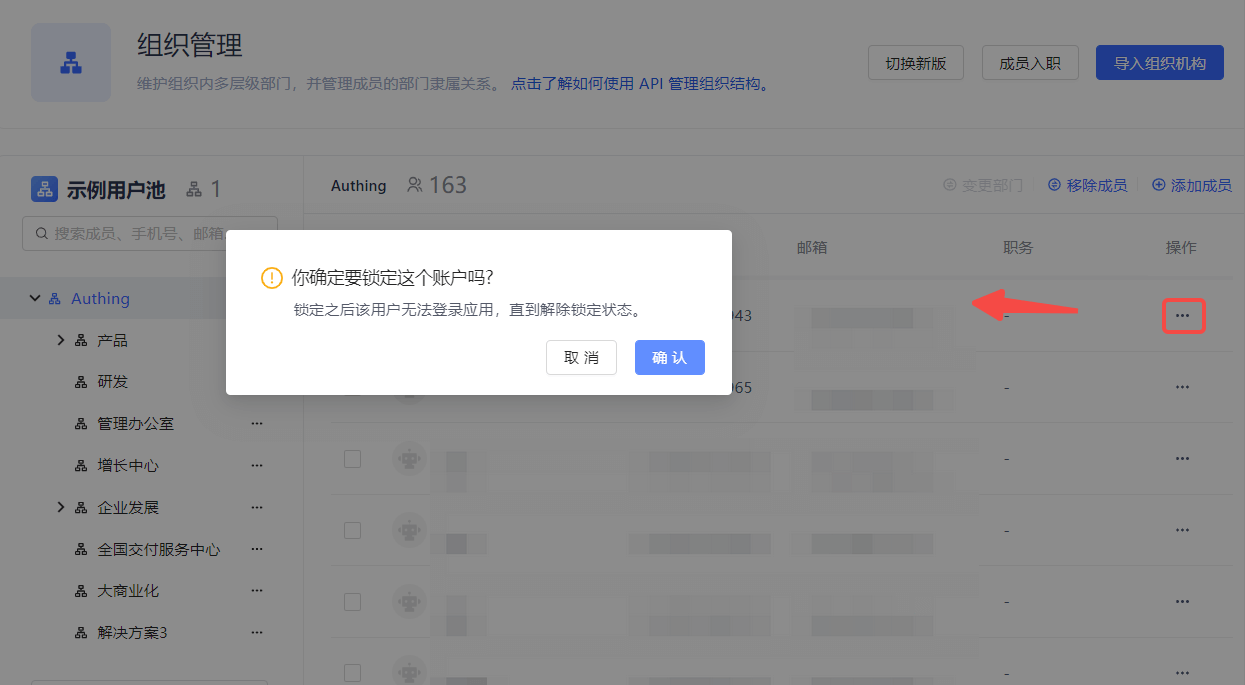
Lock Account
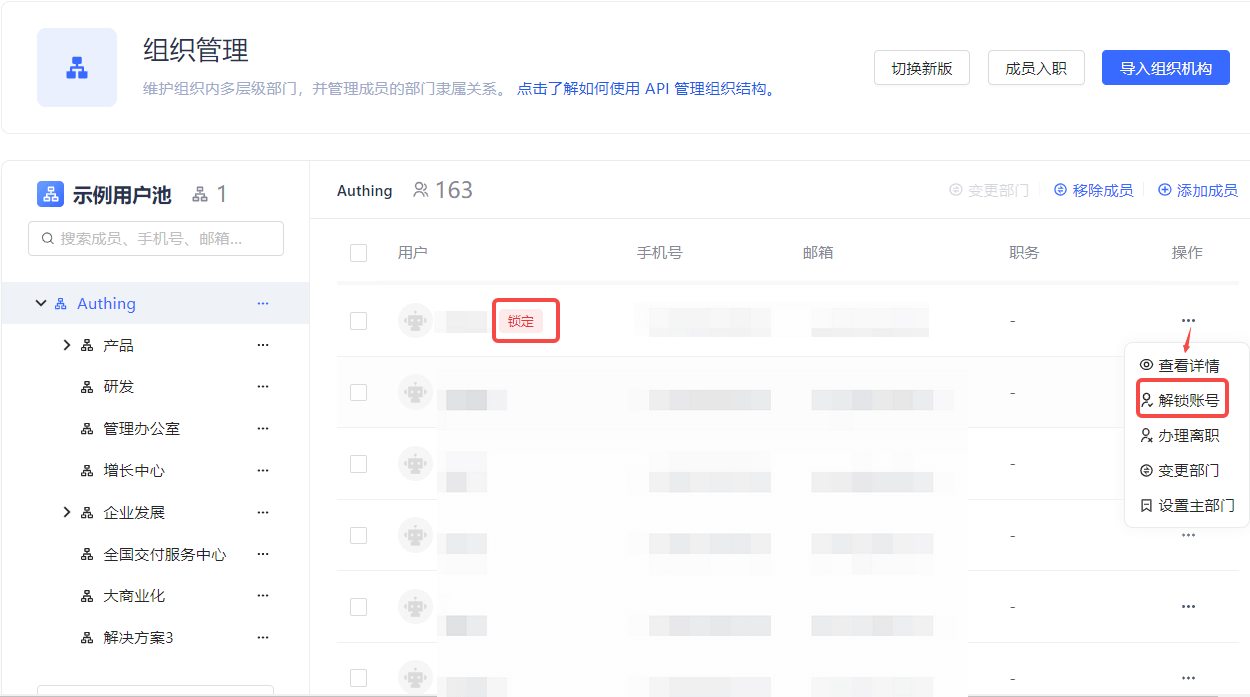
Unlock Account
¶ Change Department
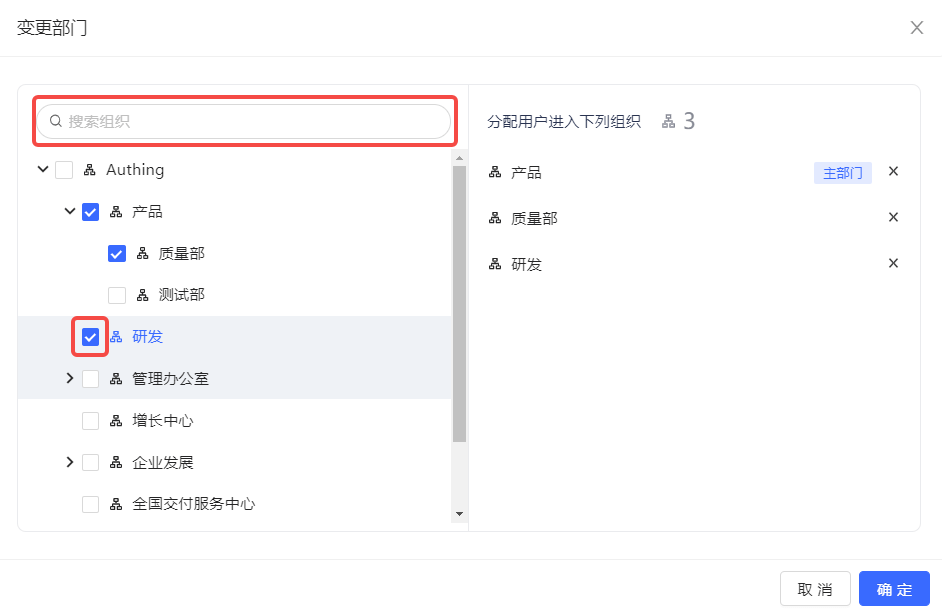
If a member needs to change departments during his/her employment, he/she can click the Change Department button in the employee's row on the Organization Management page, and select the target department in the window that opens, or search in the search box and select:
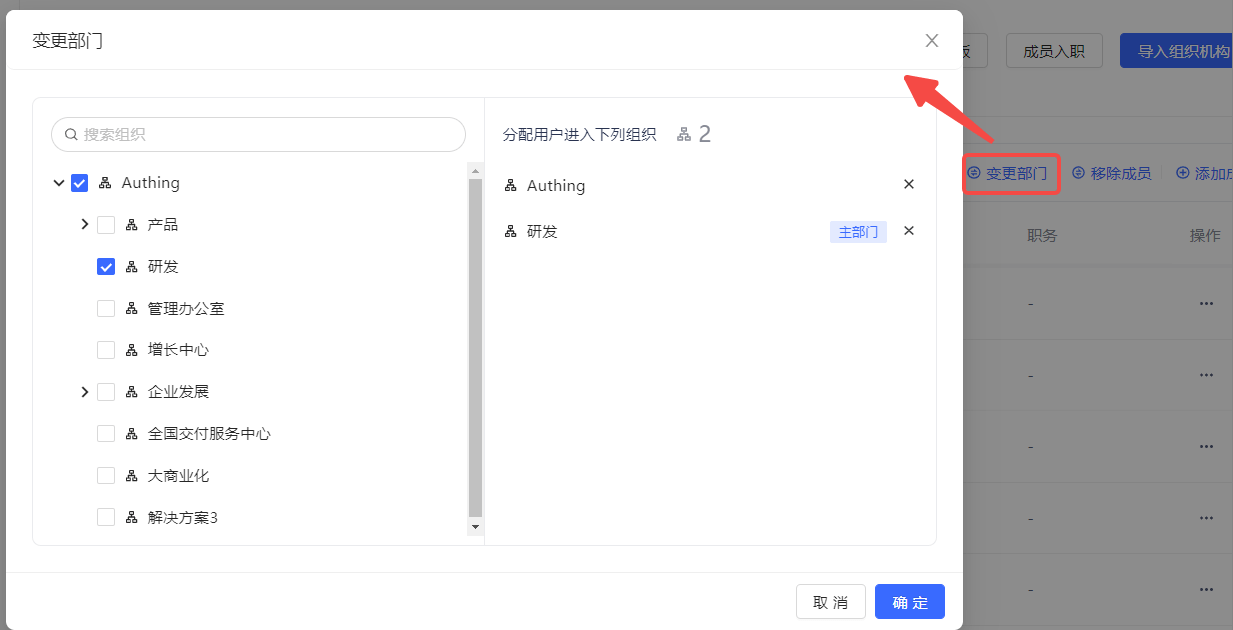
You can also select members in the member list under the corresponding level organization, and then click the Change Department button above the member list to open the Change Department window to make changes.
¶ Set the main department
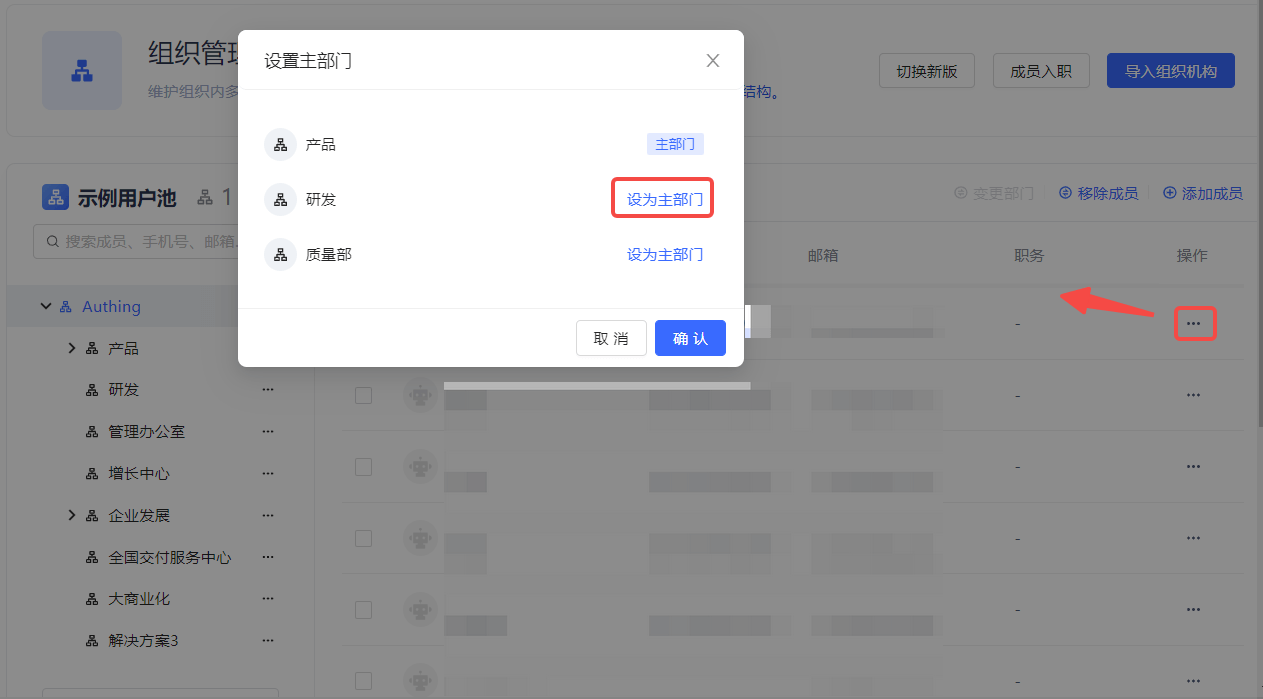
If the current member belongs to multiple departments, you can set one as the main department. To do this, you can click the Set Main Department button in the row of the target member in the user list on the Organization Management page:
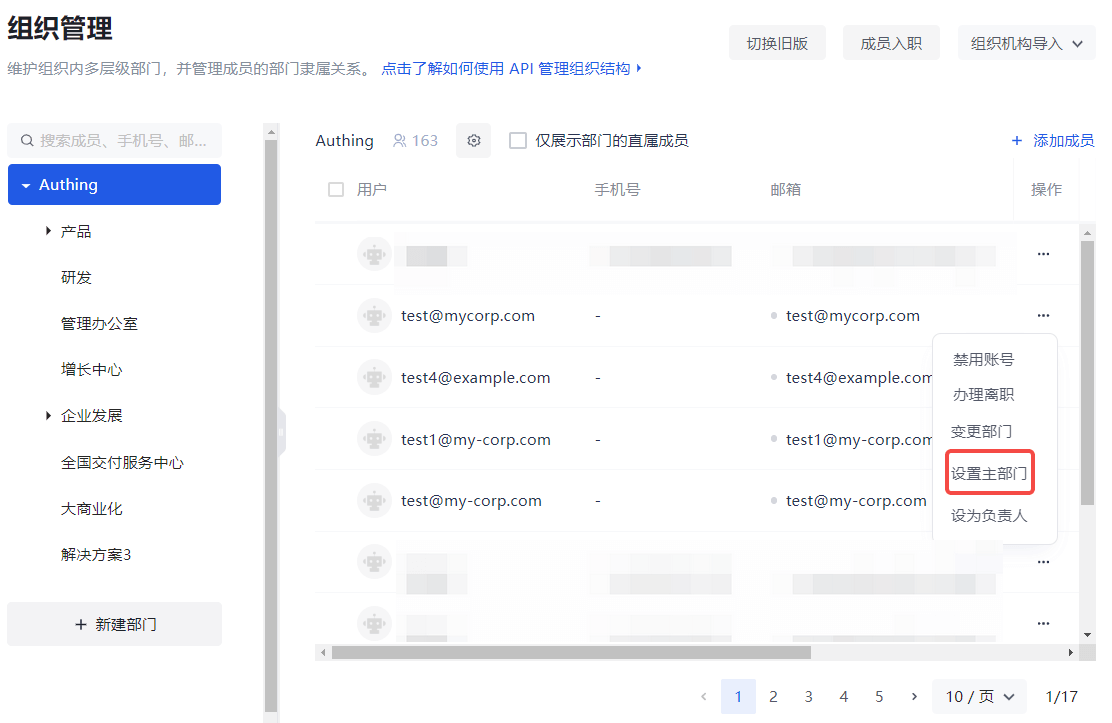
Then select and confirm the main department in the open window:
¶ Disable / Enable employee accounts
In an emergency such as an account being stolen, you need to temporarily disable the employee account. You can click the Disable Account button in the row of the employee on the Member Management page (User List page for B2B and B2C scenarios).
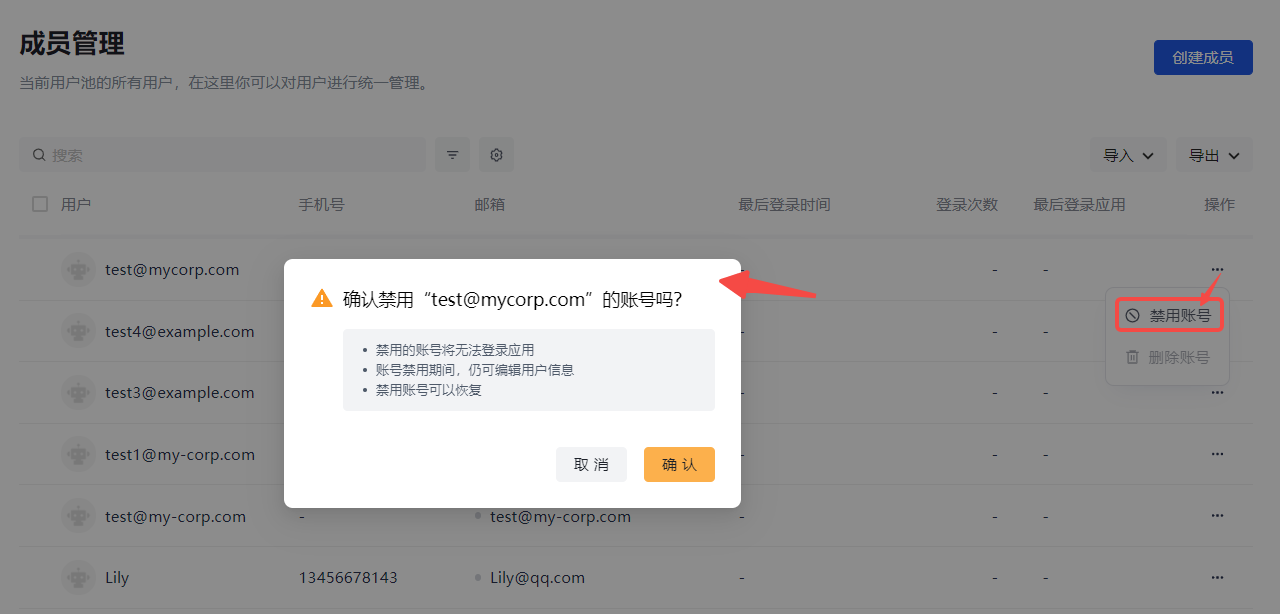
After disabling the account, the following operations will be performed automatically:
- Cancel the application authorization relationship.
- Cancel the policy authorization relationship.
- The account cannot log in.
- The department relationship is still retained.
- User information can still be edited.
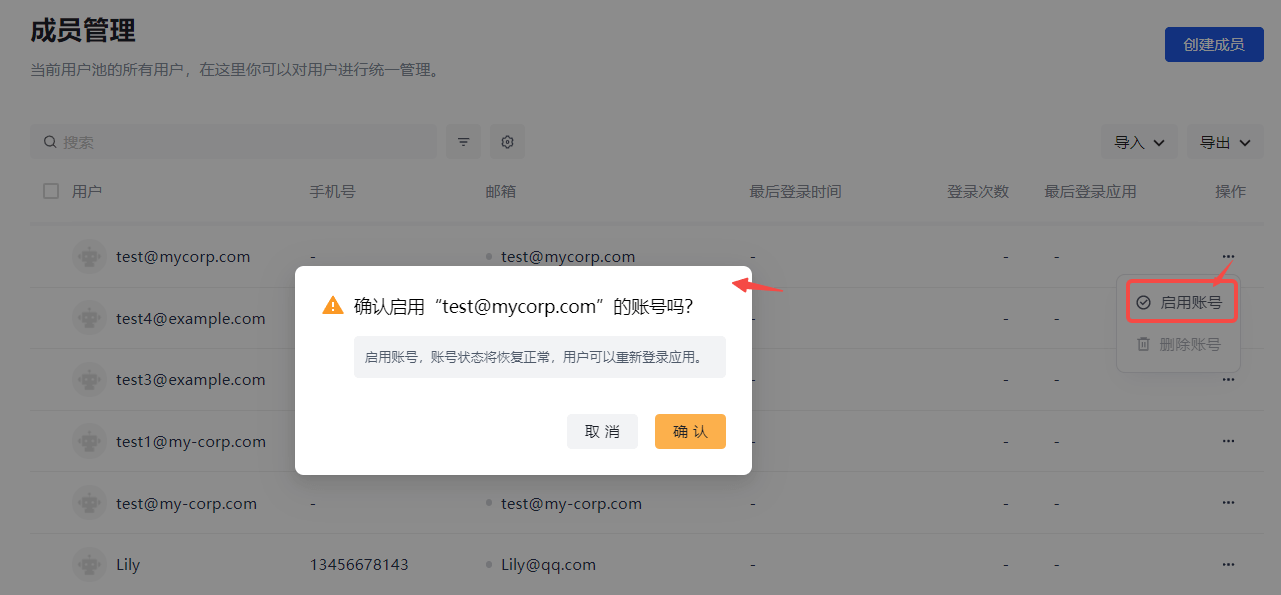
After confirming safety, you can Enable Account in the same path. Then the account permissions will return to normal.
¶ Handle resignation
You can handle employee resignation on the Organization Management page.
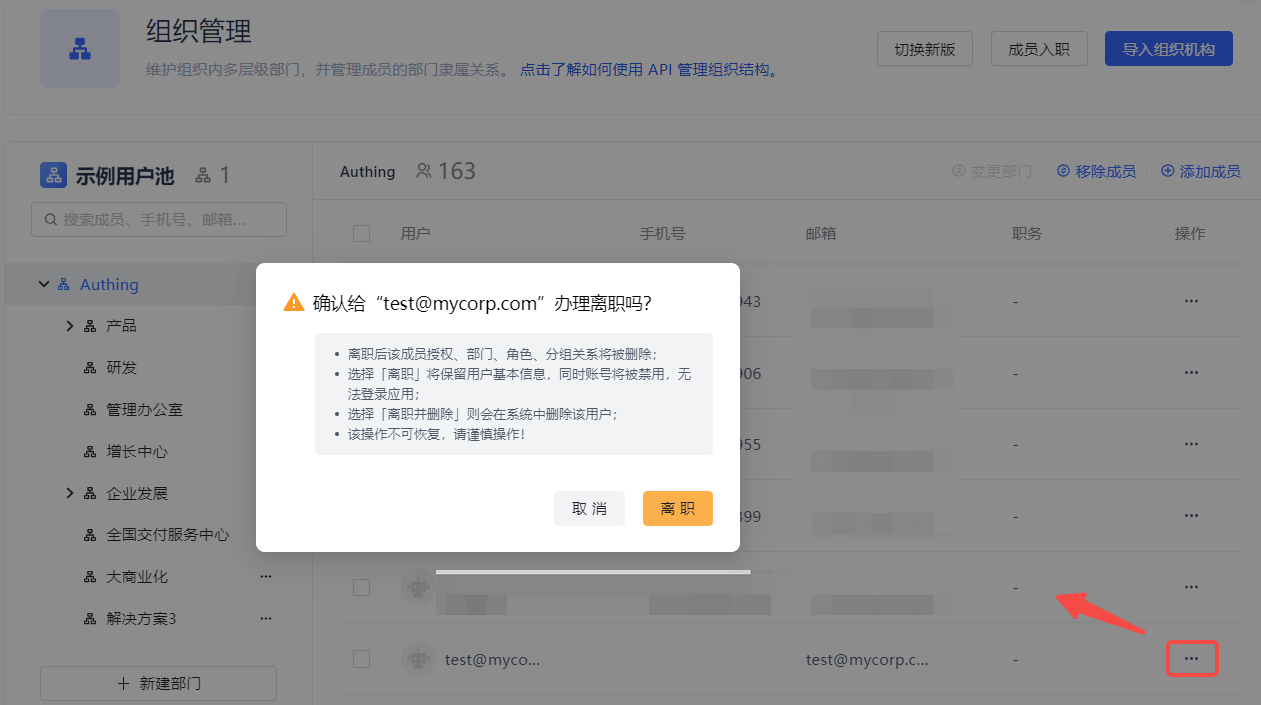
After an employee leaves, the following operations will be performed automatically:
- Cancel the application authorization relationship.
- Cancel the policy authorization relationship.
- The account cannot be logged in.
- Move out of the original department and move to the department where the employee has left.
- Keep the basic user information and delete the department, role, and group relationship of the employee.
This operation cannot be restored, please operate with caution!
¶ Delete Account
After processing the resignation of an employee, the Delete Account button of the employee under Member Management is activated:
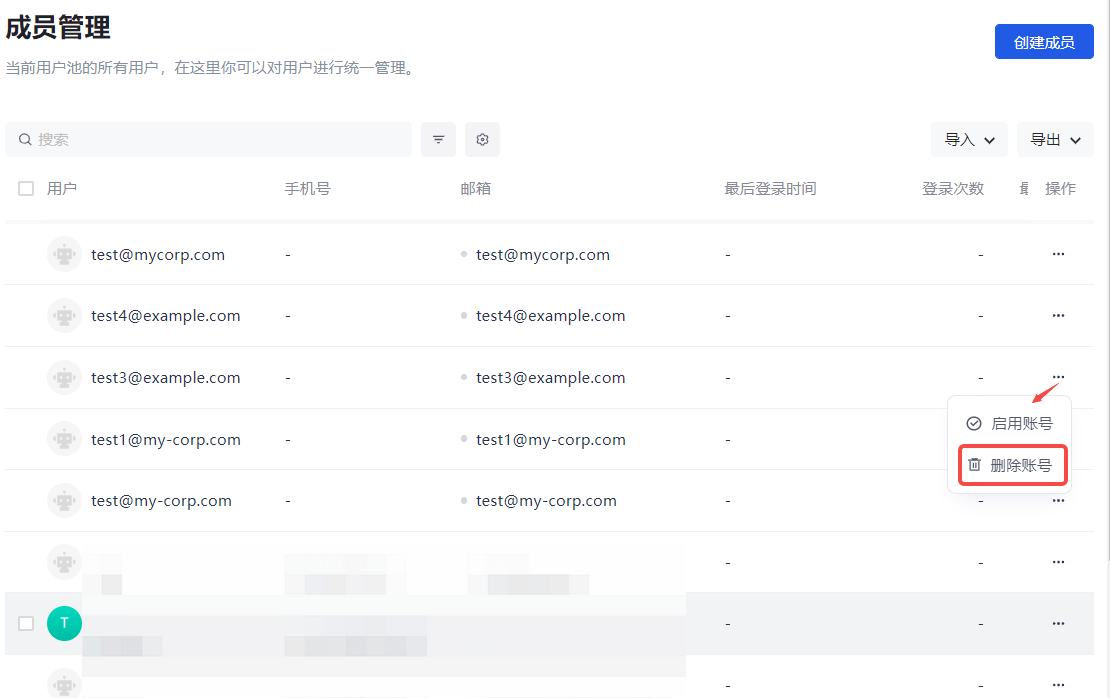
Deleting an employee account will completely delete all user-related data. Such as:
- User data
- Application authorization
- Policy authorization
- Department relationship
- Group relationship
- Role relationship
- Delete from user pool
- Login history
¶ New version of organization management
¶ Member onboarding
You can onboard members on the console organization management page:
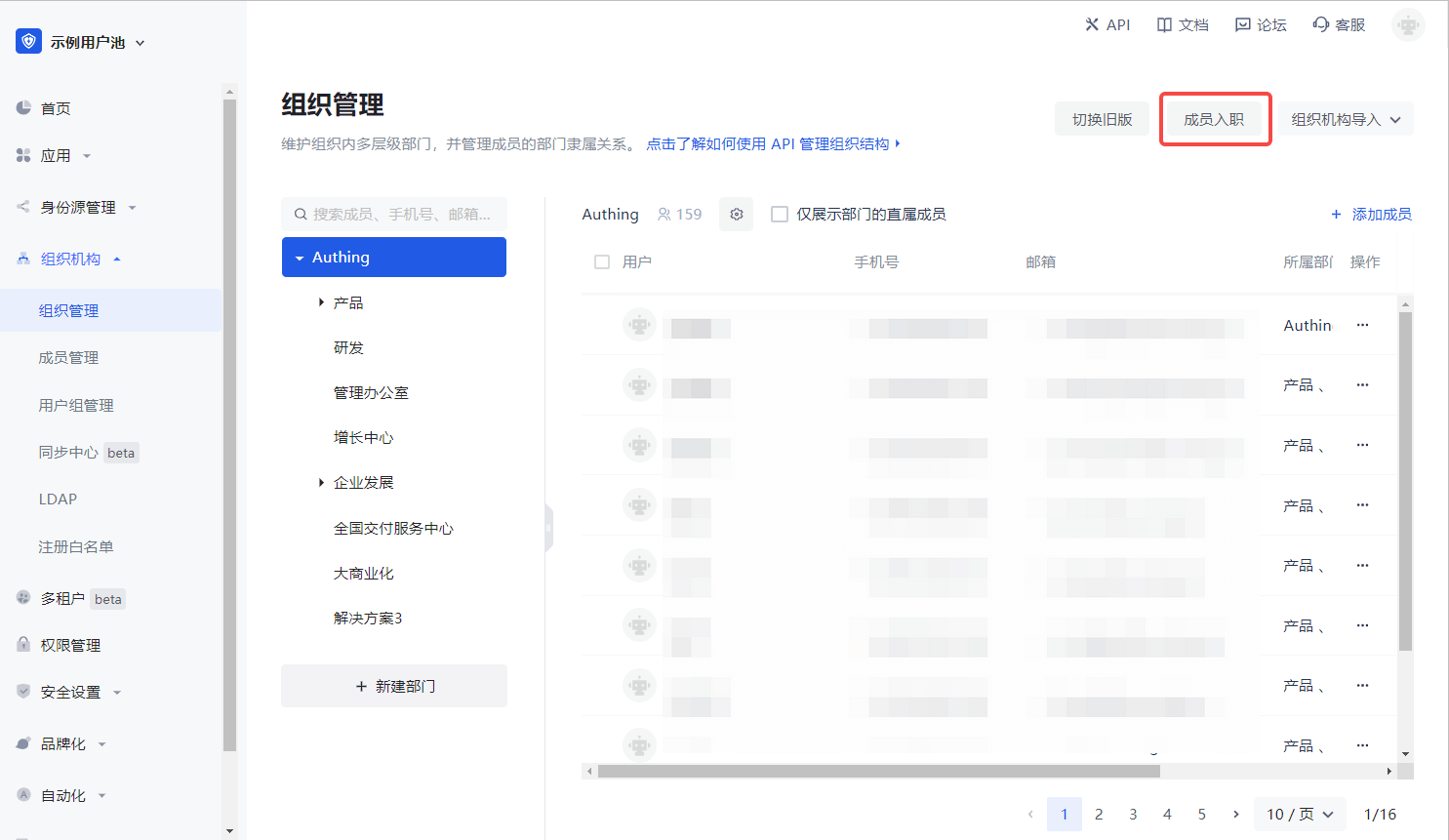
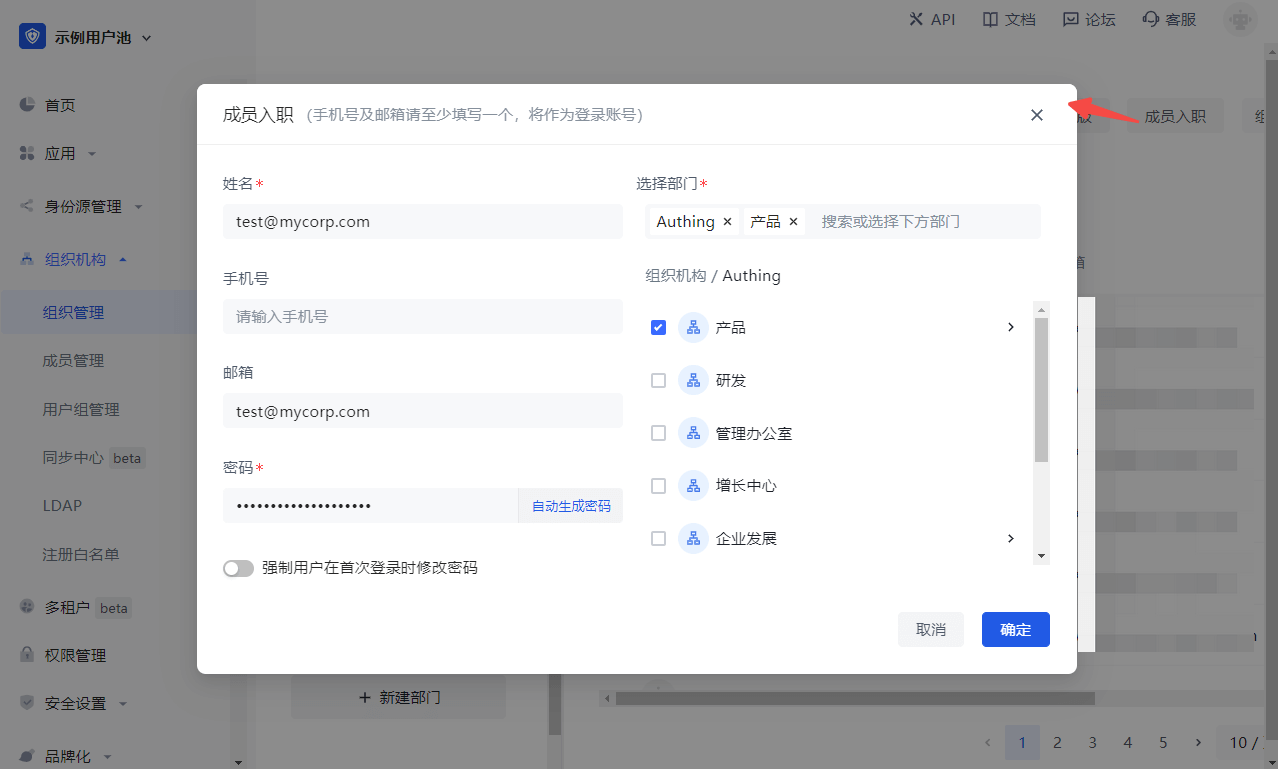
You can create an account using a mobile phone number or email address, enter your name, mobile phone number/email, and select department in the Member onboarding window:
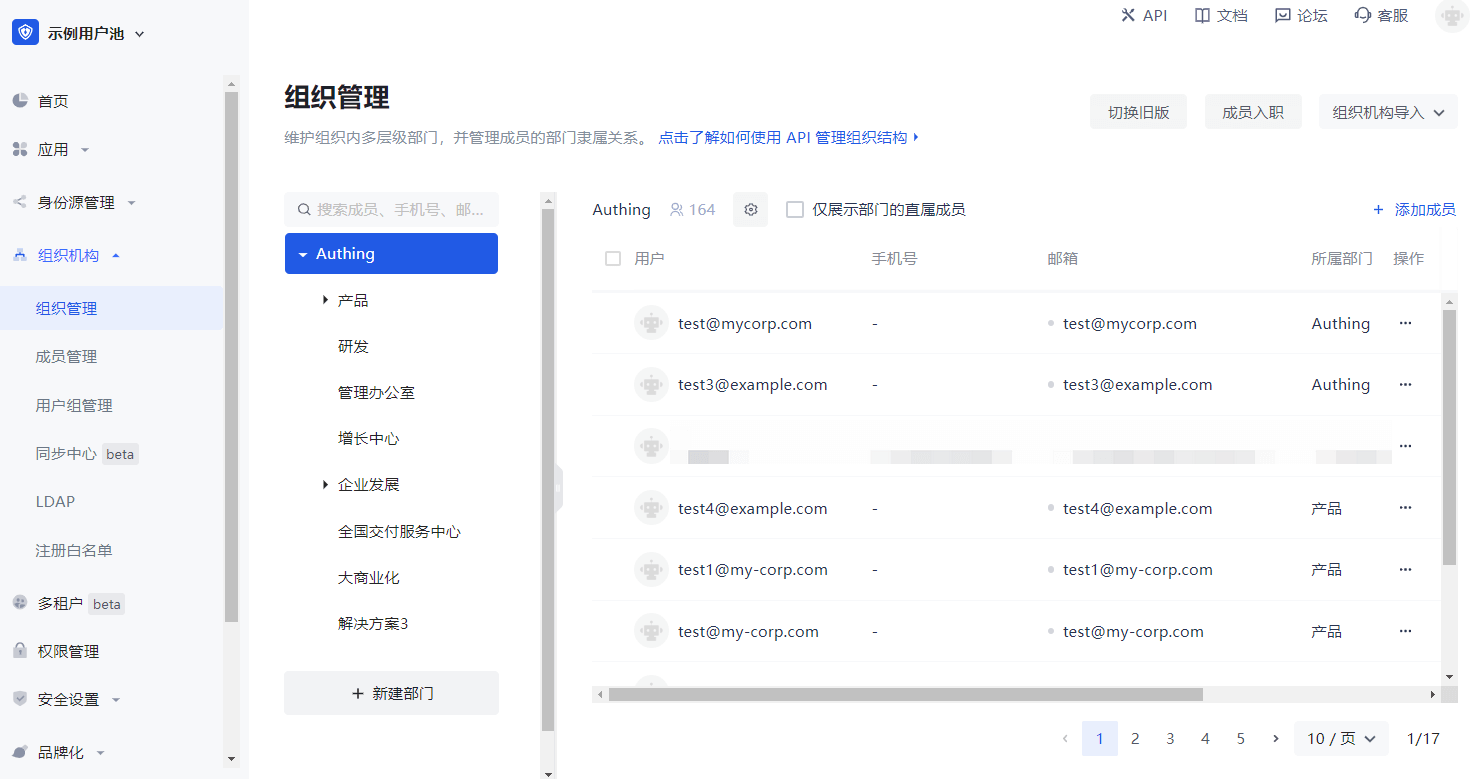
Newly added members will be displayed in the user list:
Click on the newly added member in the list to enter the user details page, where you can grant role authorization and application authorization:
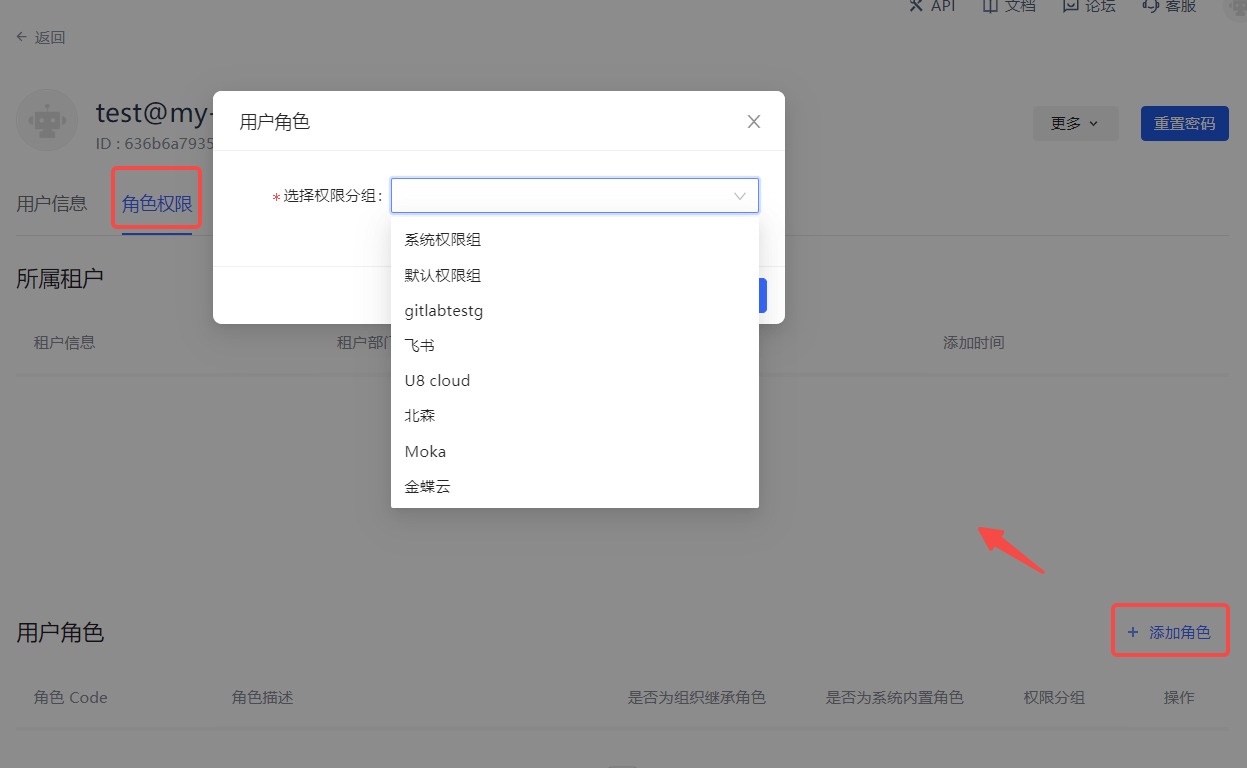
Role authorization
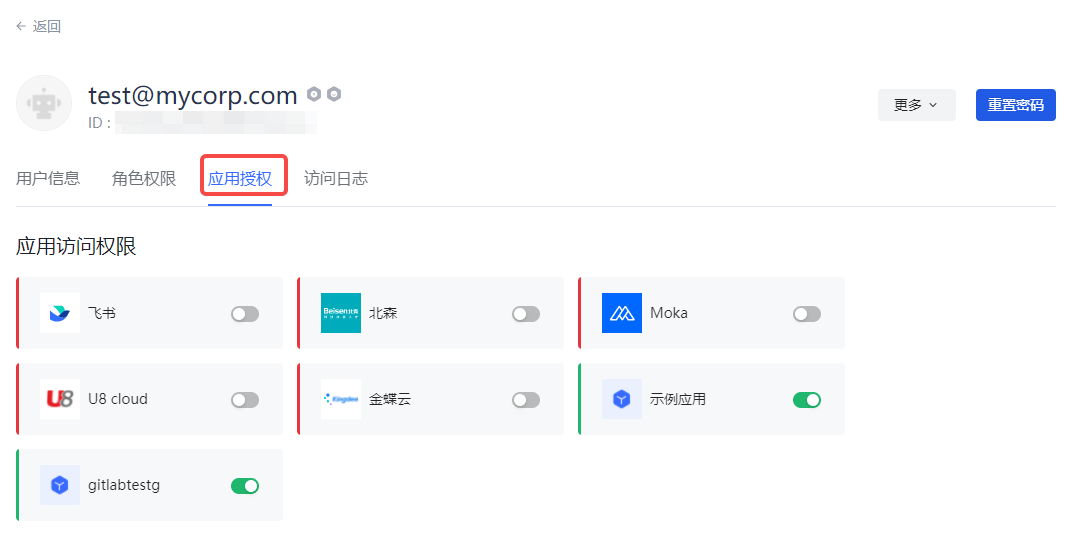
Application authorization
¶ Disable/enable employee account
In case of emergency such as account theft, it is necessary to temporarily disable the employee account.
After disabling the account, the following operations will be performed automatically:
- Cancel the application authorization relationship.
- Cancel the policy authorization relationship.
- The account cannot log in.
- The department relationship is still retained.
- User information can still be edited.
Employee accounts can be disabled/enabled in two paths.
¶ Disable/Enable Accounts Under Organization Management
Click the Disable Account button in the row of the employee on the Organization Management page and confirm in the pop-up window.
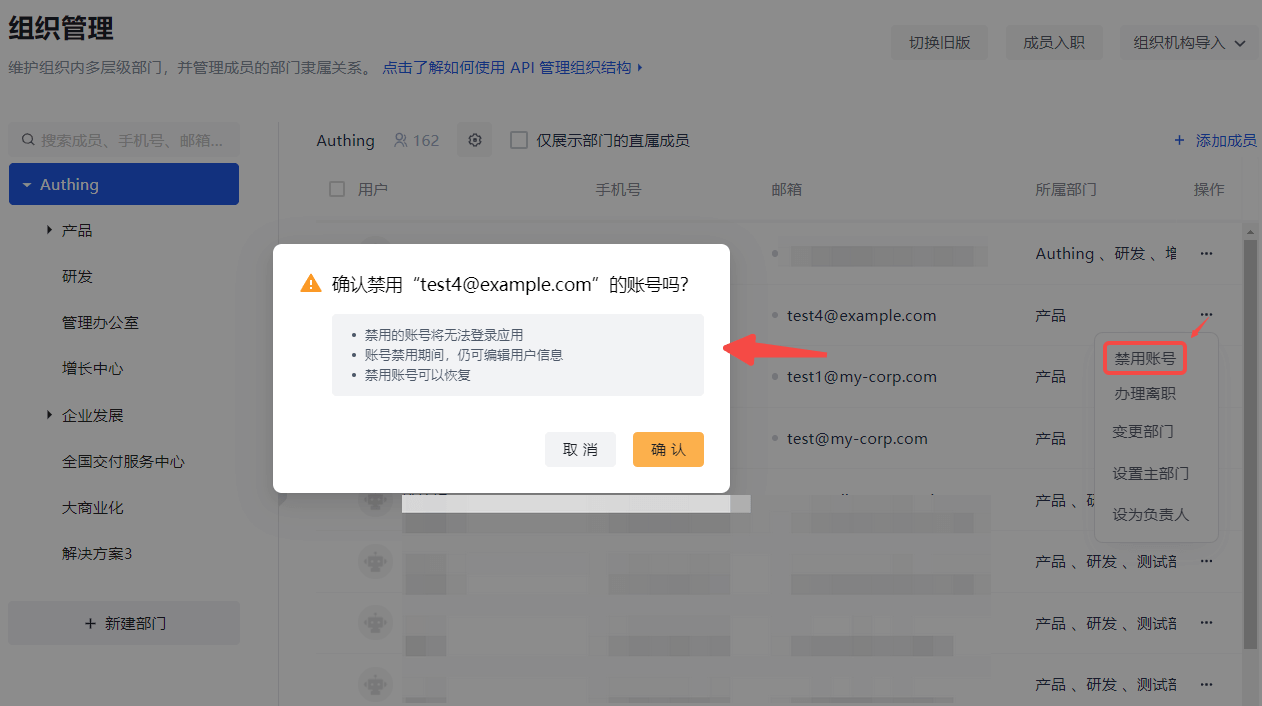
You can also re-enable the account in the same path:
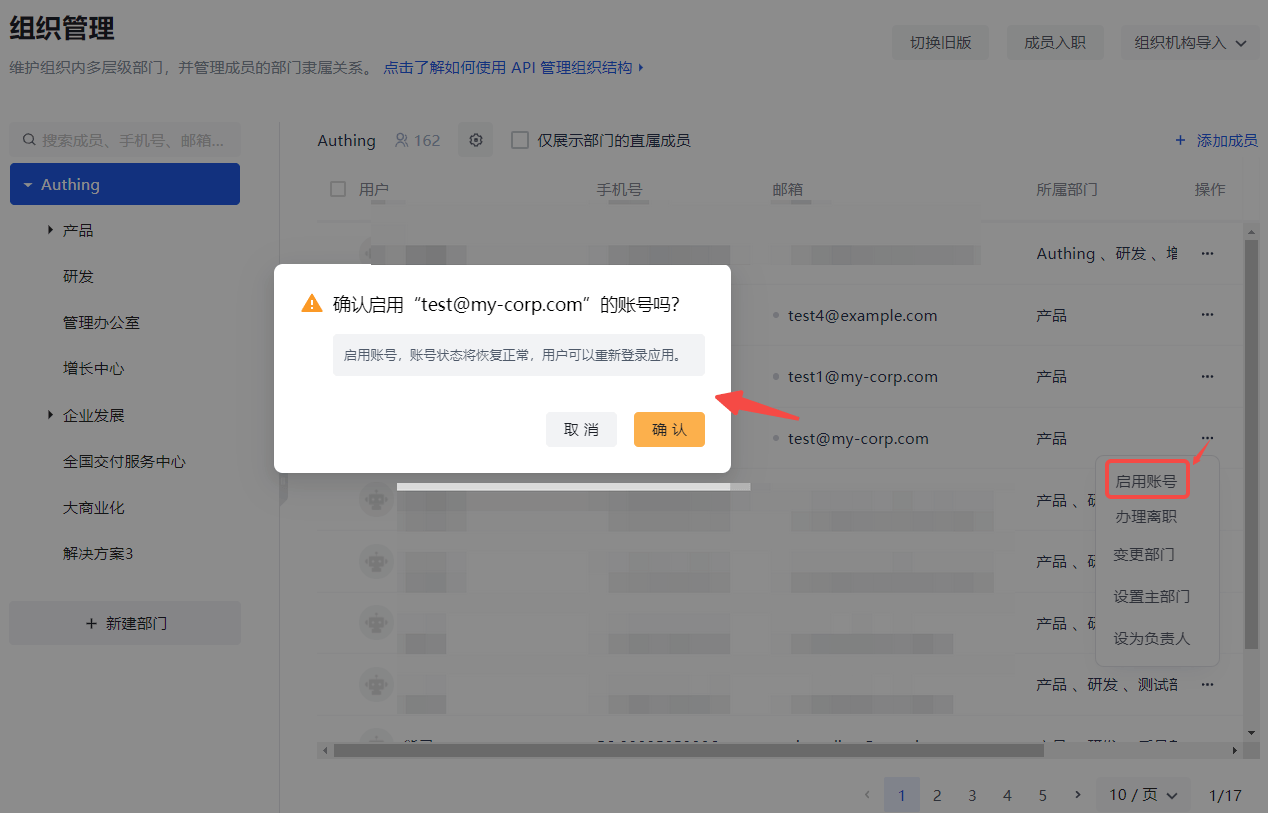
¶ Disable/Enable Accounts Under Member Management
Click the Disable Account button in the row of the employee on the Member Management page (the User List page for B2B and B2C scenarios).
After confirming safety, you can activate the account in the same path. Then the account permissions will return to normal.
¶ Change department
If a member needs to change departments during his/her employment, he/she can click the Change department button on the Organization management page, check the target department in the open window, or search in the search box and check it. The changed department will be displayed in the list on the right side of the window:
¶ Set the main department
If the current member belongs to multiple departments, one can be set as the main department. To do this, just click Set to Main Department in the department list on the right side of the Change Department window above, and then click OK:

You can also click the Set Main Department button in the row of the target member in the user list on the Organization Management page:
Then select and confirm the main department in the open window:

¶ Set as Person in Charge
You can set persons in charge for organizations/departments at different levels.
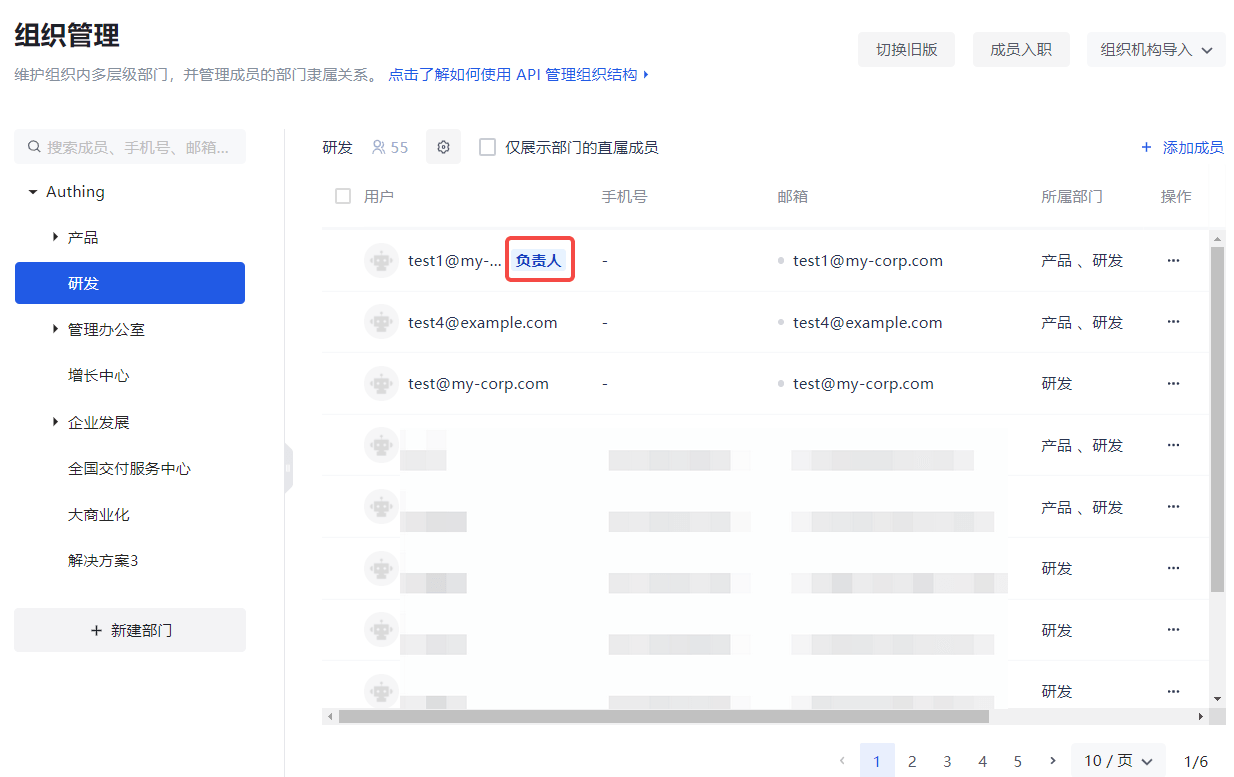
You can set persons in charge across departments. However, the person in charge label will only be marked if the selected person is a direct member of the selected department.
There are two ways to set the department head:
- Click the More button after the department to be set in the organization tree, and select Set department head.

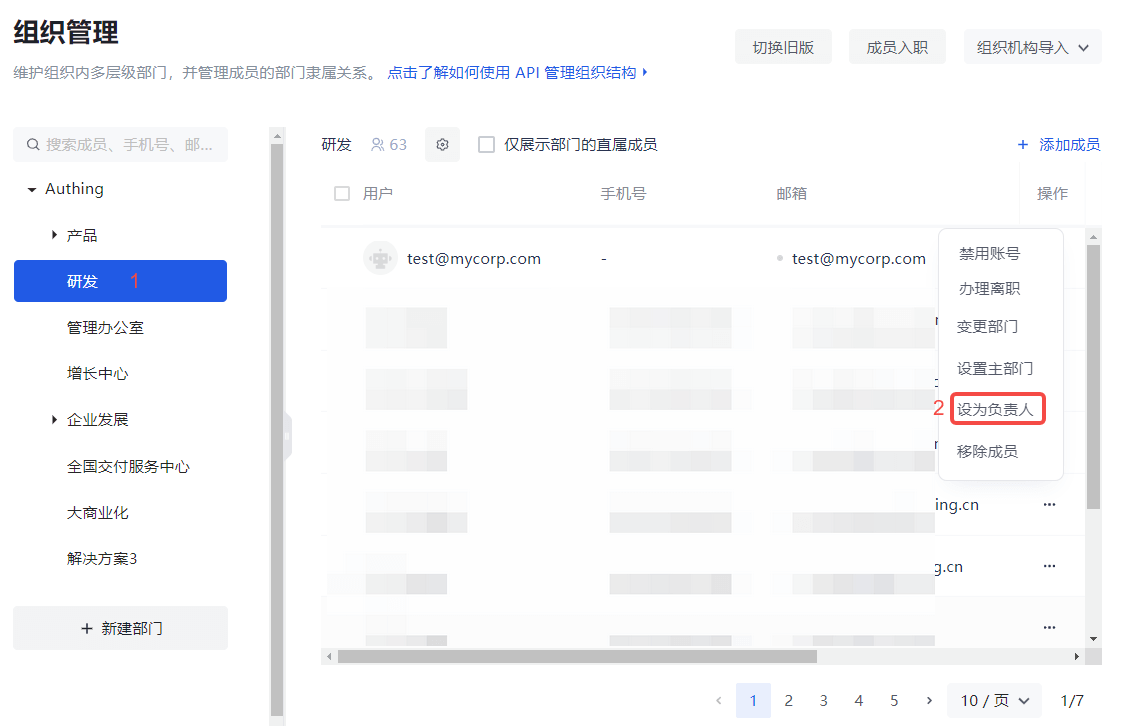
- Set the head in the user list corresponding to the organization:
Select the organization/department in the organization list on the left.
Click the row of the corresponding member in the user list of the current organization/department on the right Set as head.
The selected member becomes the head of the organization/department.
¶ Handling Resignation
You can handle employee resignation on the Organization Management page.
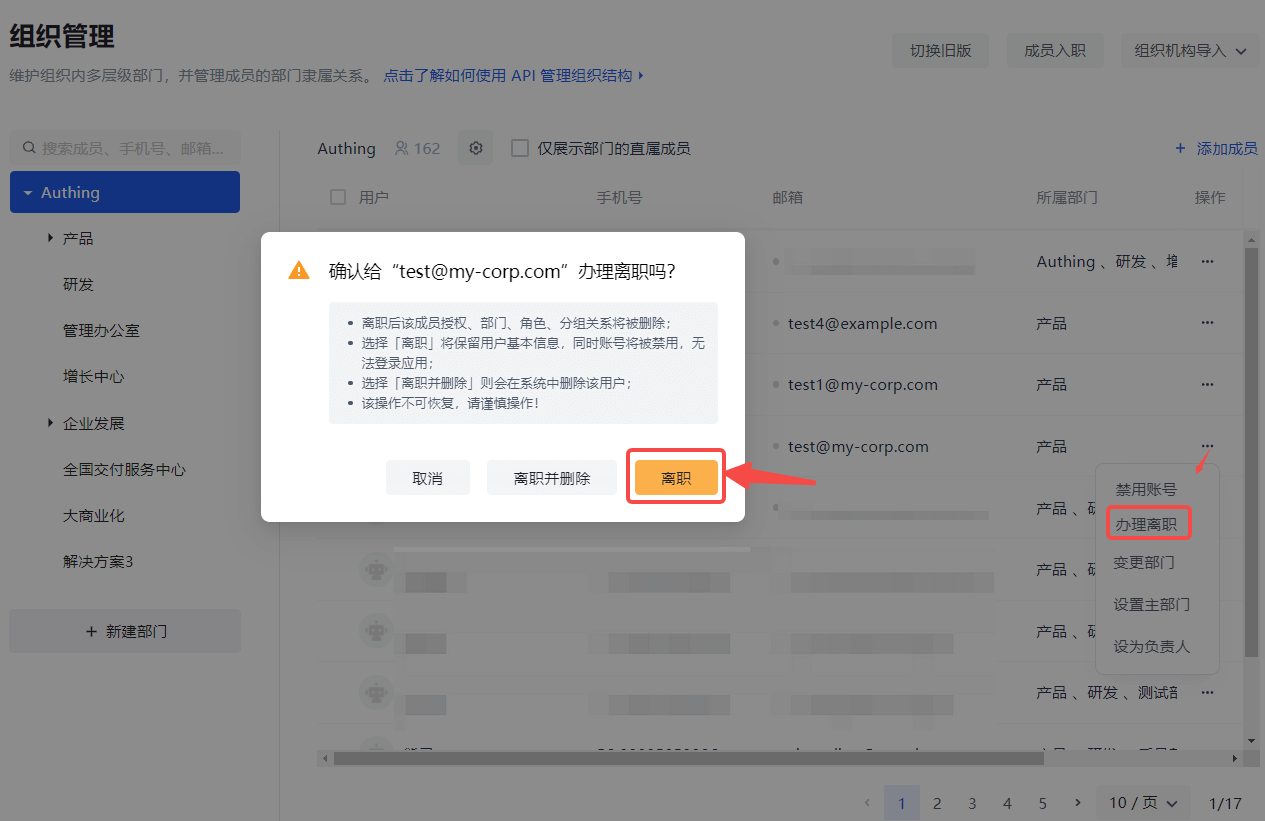
After an employee resigns, the following operations will be performed automatically:
- Cancel the application authorization relationship.
- Cancel the policy authorization relationship.
- The account cannot log in.
- Move out of the original department and move to the department where the employee has left.
¶ Deleting an Account
You can delete the employee account simultaneously when handling resignation:
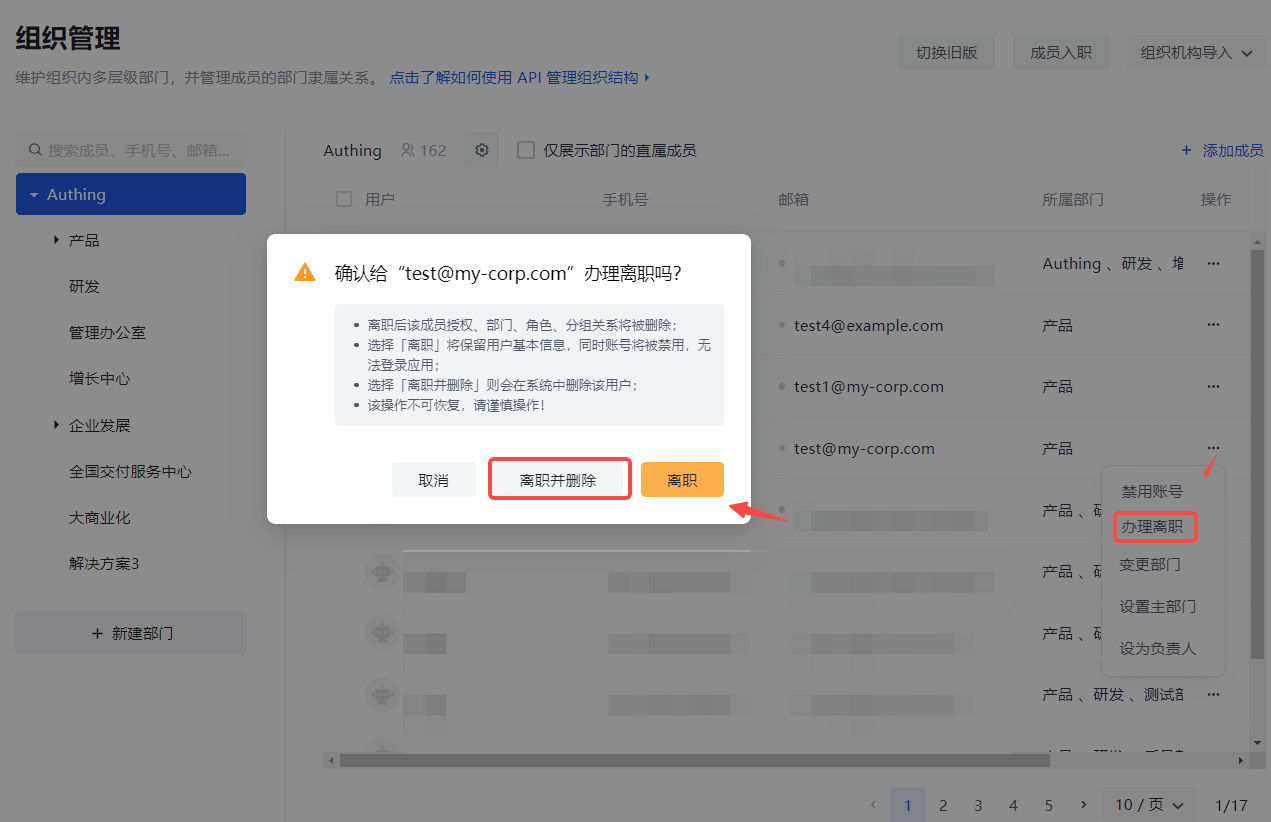
Resignation and account deletion can also be performed in steps:
First, handle resignation on the Organization Management page.
Then delete the account in member management.
All user-related data will be completely deleted. For example:
- User data
- Application authorization
- Policy authorization
- Department relationship
- Group relationship
- Role relationship
- Delete from user pool
- Login history