
¶ Password Policy
To configure a password policy for a subject, perform the following steps:
On the Password Security page, click the Create Password Policy button in the upper right corner of the page.
Open the Create Password Policy page.Fill in the Policy Name and Description in the Basic Information module.
The password policy name must be unique. Description is a maximum of 200 characters.
- In the Policy Application Subject module, select Policy Application Subject Type.
You can filter subjects by User, Organization (optional for toE), and Group.
- Select Policy Application Subject.
- The data sources of User, Organization (optional for toE) and Group come from User List, Organization (optional for toE) and User Group Management in User Management respectively.
- Multiple subjects of the same type can be selected.
- If the selected subject is deleted in the data source, the password policy to which the subject belongs will be linked to delete the subject.
- Select the applicable password strength (No detection, Low strength, Medium strength, High strength, Custom strength).
- The password strength set here applies to user registration password, user password reset and user password modification.
- Password strength is not detected by default.
- For custom password strength rules, you need to define a regular expression below and enter a password error prompt.
Enter a password in the Password Detection field to detect whether the password meets the password strength rules set above.
If it meets the requirements, a green check mark will be displayed after the input box; if it does not meet the requirements, an error message will be displayed after the input box, and the user needs to modify the information according to the message.Turn on the User login password strength check switch (off by default).
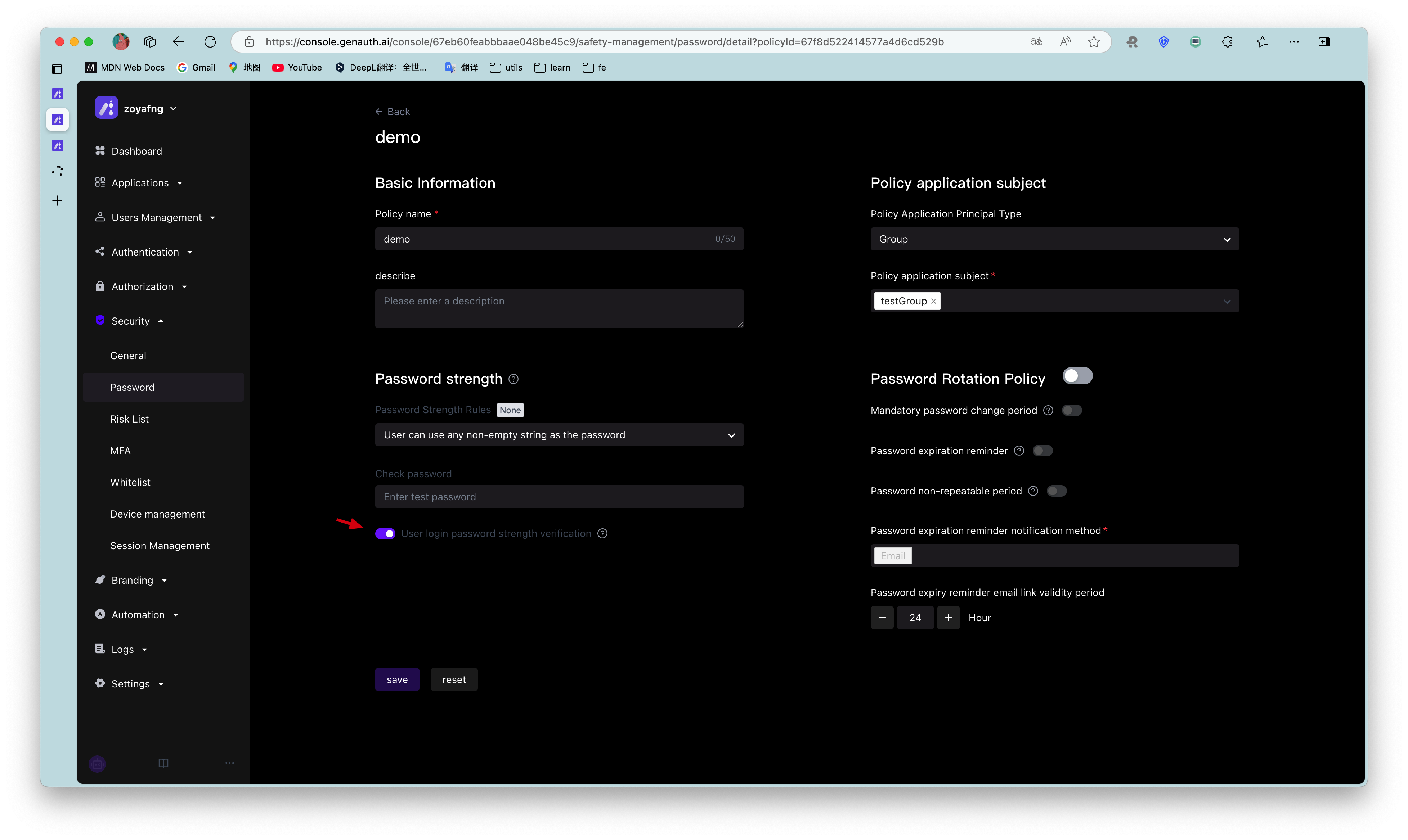
After turning it on, when a higher password strength rule is set, log in to an account with a lower password strength and jump to the password modification page.
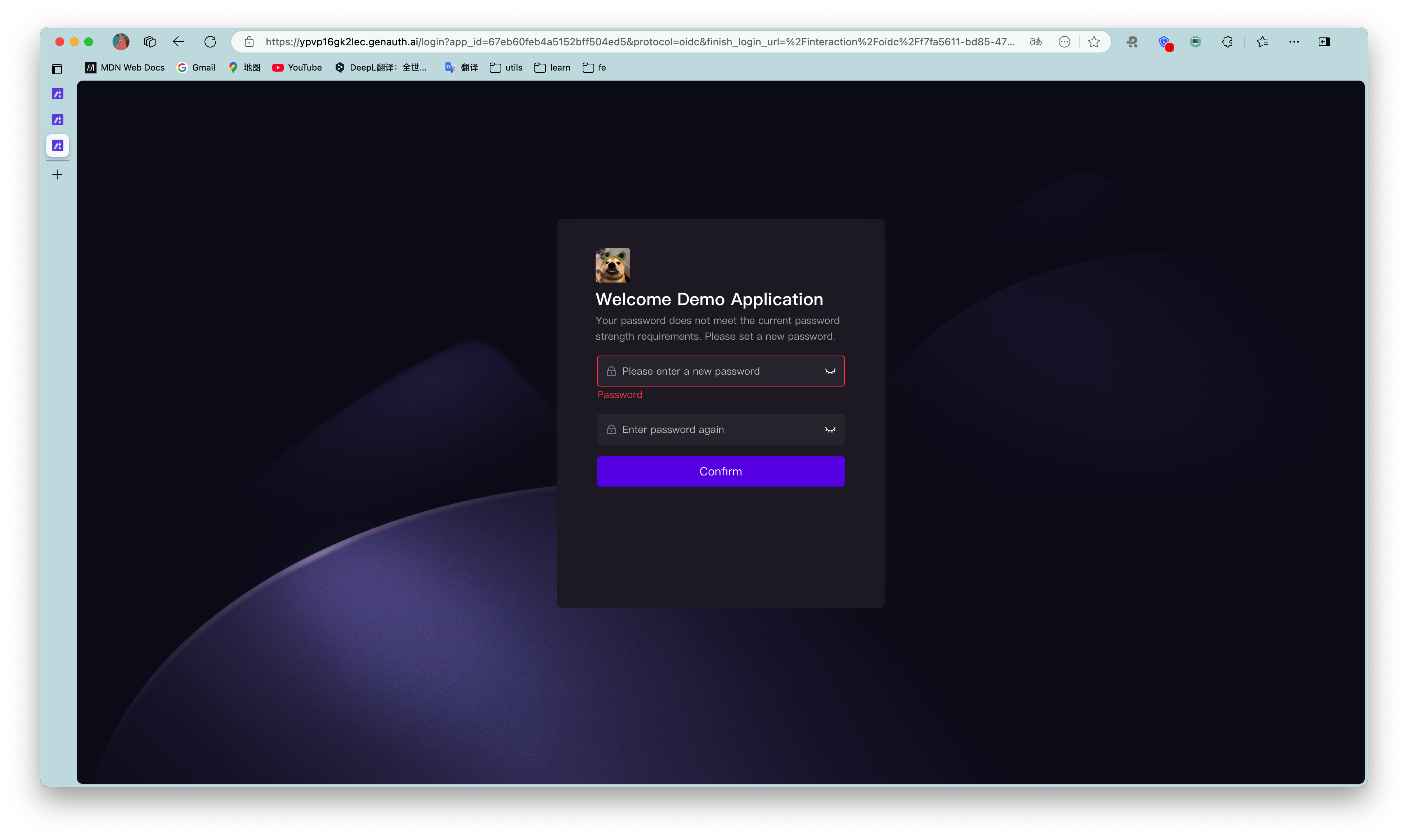
If the administrator increases the password strength when the user is modifying the password, the page will prompt the user to refresh the page and try again.
- Set password rotation policy (default closed).
Forced password change period: After the selected period, the user will be forced to change the password when logging in.
Password expiration reminder: Send an email reminder to the user once a day during the expiration period until the user successfully changes the password.
- The user must change the password when logging in.
- Administrators can modify the email template in Branding->Message Settings.
- Password non-repeatable period: During the selected period, when the user changes or resets the password, the password used in the past cannot be used again.
- Click Create.
The newly created password policy will be displayed at the top of the Password Security->Password Policy list.
- When modifying an existing password policy, the Save and Reset buttons are below.
- Click Reset, and all modified but unsaved configurations will be restored to the state after the last save.