GenAuth DocsDocuments
Concepts
User Guide
Development Integration
AgentAuth
Metadata
Development Integration
Multi-tenant (beta)
Console Documentation
Multi-tenant Console
Tenant Console
Saas Application Demo
Concepts
User Guide
Development Integration
AgentAuth
Metadata
Development Integration
Multi-tenant (beta)
Console Documentation
Multi-tenant Console
Tenant Console
Saas Application Demo
Old version
User Guide
  • Quick Start

  • Authentication

    • Overview
    • Username Password Authentication
    • SMS Code Authentication
    • Social Login Authentication
    • QR Code Login

    • Authentication in Mini Programs
    • Implement Single Sign-On (SSO)
    • Mobile SSO
    • Multi-factor Authentication
    • Extend Authentication Process

    • Customize Login UI
  • Access Control

  • Authorization

  • Adaptive MFA

  • User Account Management

  • User Directory Management

  • Applications

  • Become a Federation Authentication Identity Provider

  • Connect External Identity Providers (IdP)

  • WeChat Ecosystem Full Scenario Capabilities

  • Migrate Users to GenAuth

  • Security Settings

  • Branding

  • Automation

  • Audit Logs

  • Setting

  • FAQ

  1. User Guide
  2. /
  3. Authentication
  4. /
  5. SMS Code Authentication

¶ Use SMS verification code authentication

Update time: 2025-07-23 07:34:21
Edit

Developers can use the standard login components and API & SDK provided by GenAuth to quickly implement a user system based on mobile phone numbers. You can also configure a mobile phone number whitelist in the console's User Management - Registration Whitelist, so that only mobile phone numbers in the whitelist can register and log in.

The verification code SMS will use the unified SMS template of GenAuth by default. If you want to customize the SMS template, you can configure a custom SMS template in the console's Settings - Message Service (currently supported SMS service providers are Chuanglan, Alibaba Cloud, and Tencent Cloud).

¶ Use the hosted login page

¶ Login

Login with mobile phone number and password. If the user does not exist, an account will be automatically created.
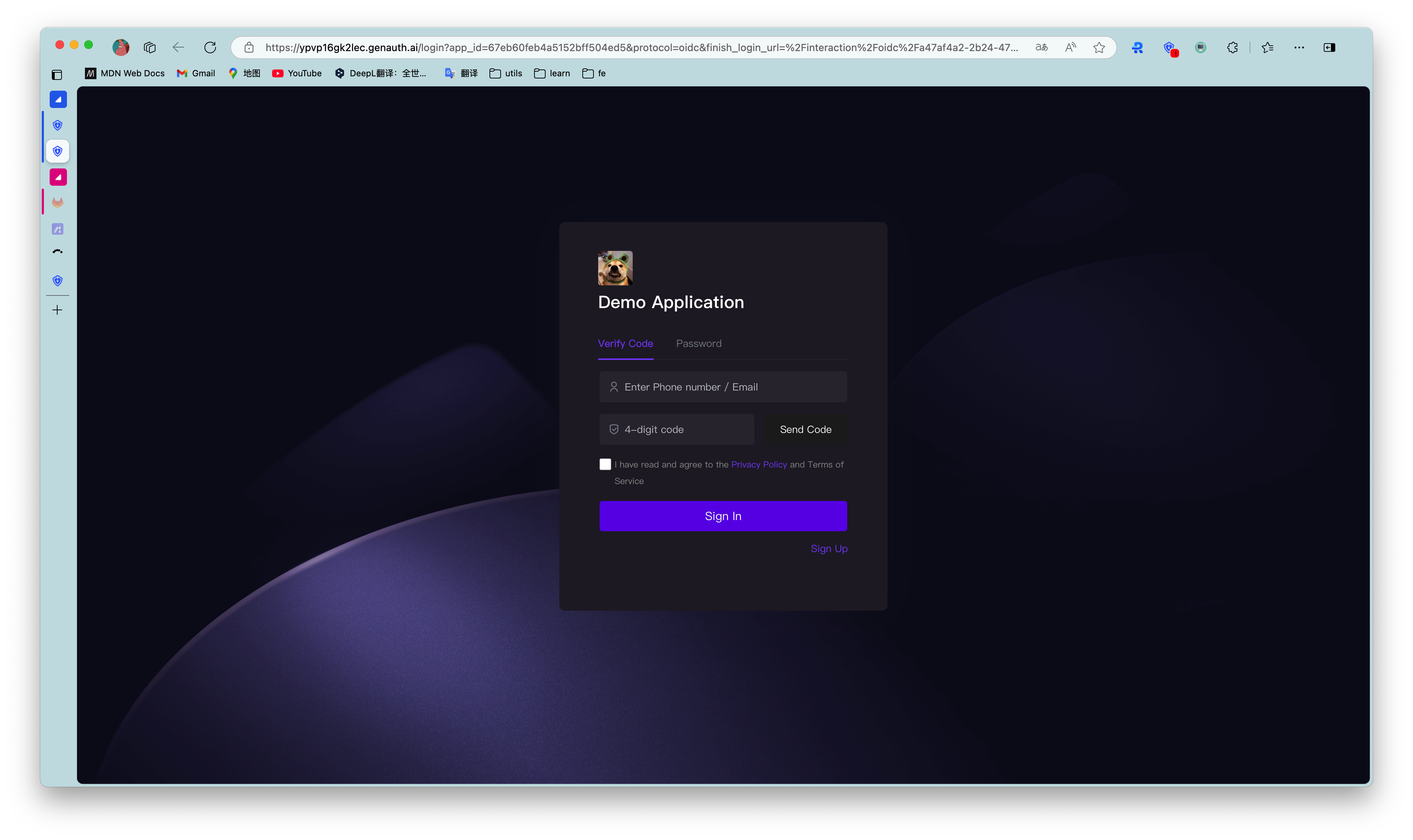
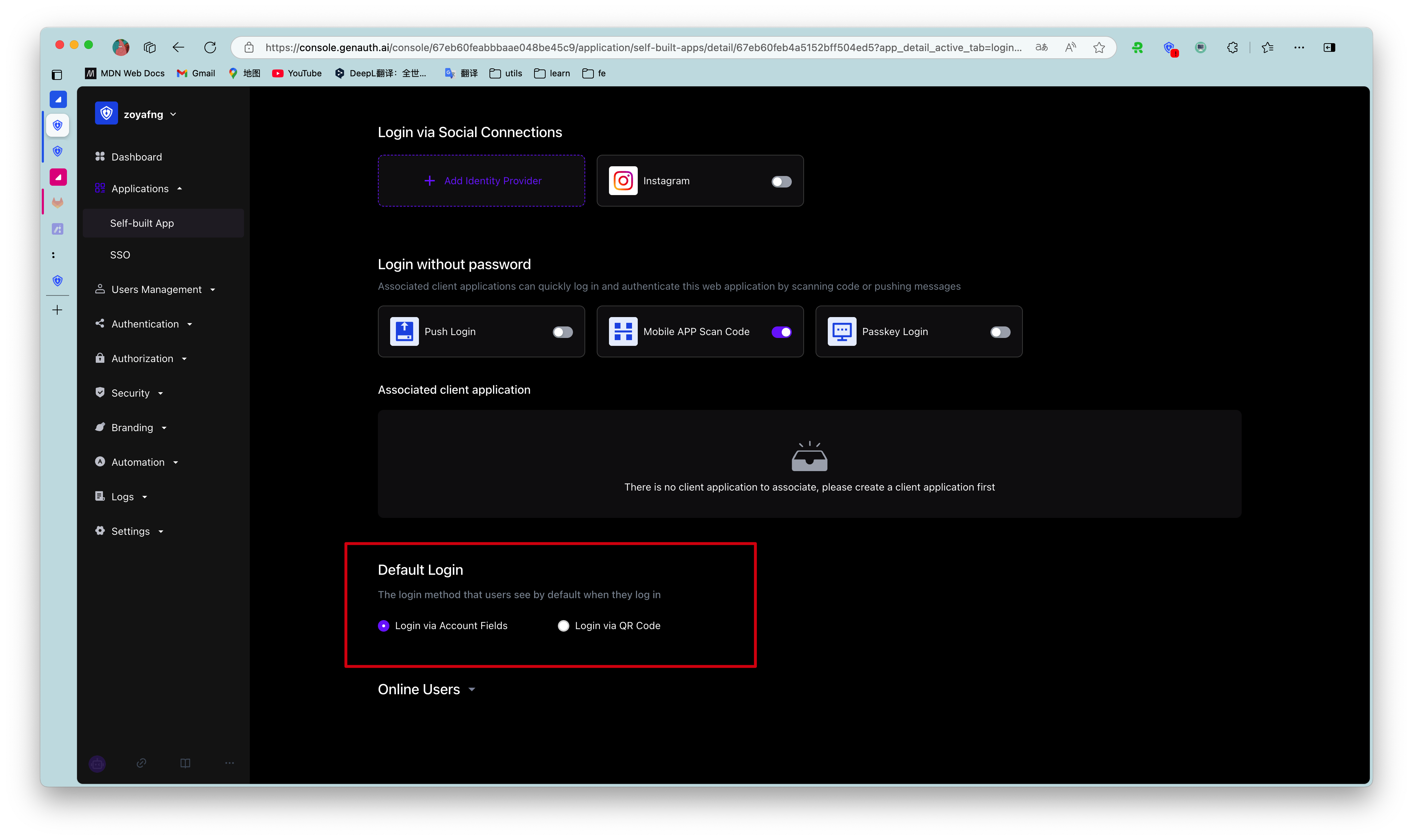
By default, the default login method of the application is password login. You can change it in the application configuration:
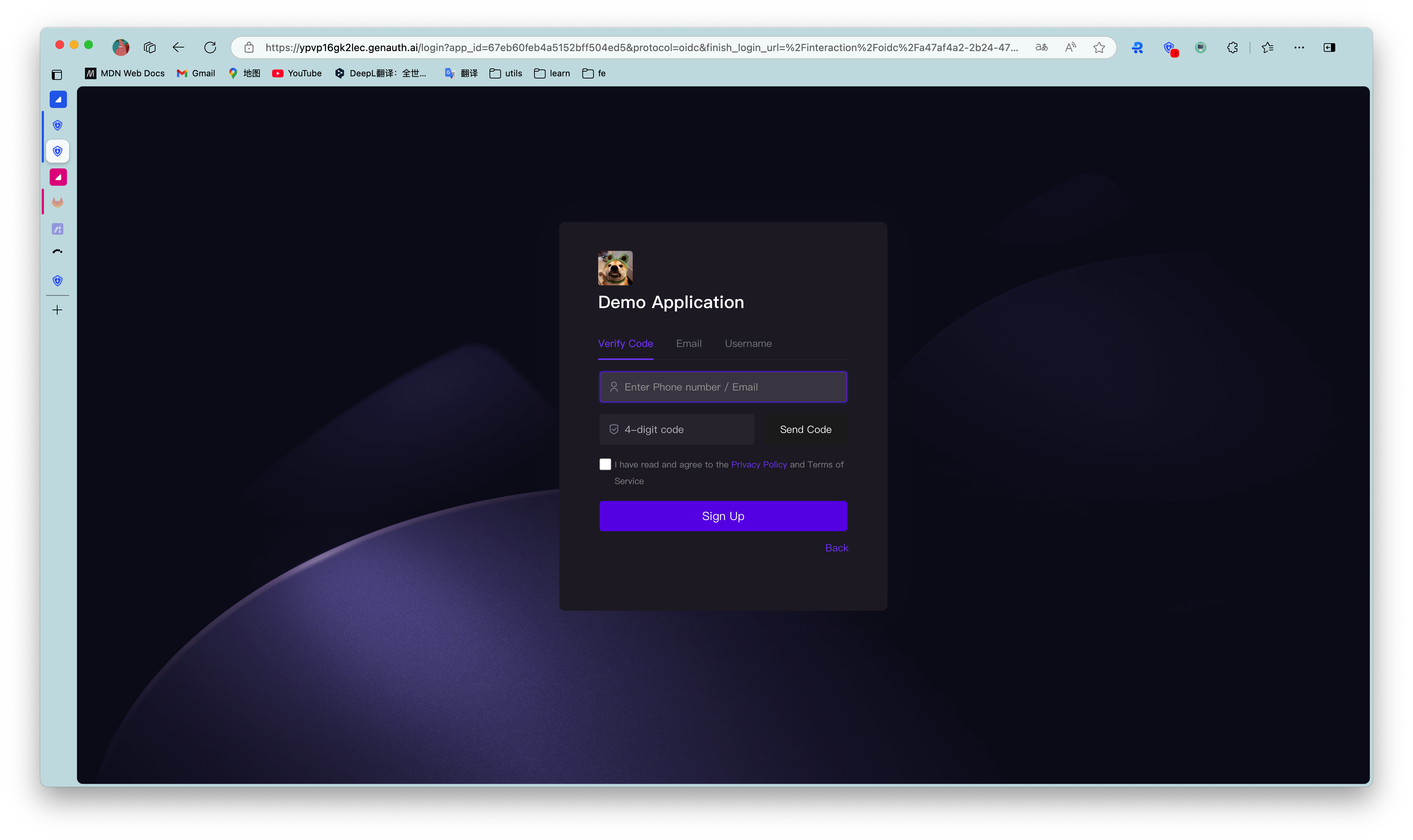
¶ Register
¶ Use the embedded login component

The embedded login component and the online hosted login page are basically the same in style and interaction. The difference is that the online hosted login page is fully managed and maintained by GenAuth and is completely independent of your application, while the embedded login component can be embedded in your application. For detailed usage, please see: Use the embedded login component to complete authentication.

¶ Using API & SDK

¶ Send SMS verification code

Select language
Java
Loading...

Use the UserPool ID and AppID to initialize the AuthenticationClient of the Java SDK:

import cn.genauth.core.auth.AuthenticationClient;
// Initialize with AppId and appHost
AuthenticationClientOptions options = new AuthenticationClientOptions();
options.setAppId(GEN_AUTH_APP_ID);
options.setAppHost(GEN_AUTH_APP_HOST);
AuthenticationClient client = new AuthenticationClient(options);

Use the sendSmsCode method:

String phone = "phone number";
authenticationClient.sendSmsCode(phone).execute();

¶ Login

Select language
Java
Loading...

Use the UserPool ID and AppID to initialize the AuthenticationClient of the Java SDK:

import cn.genauth.core.auth.AuthenticationClient;
// Initialize with AppId and appHost
AuthenticationClientOptions options = new AuthenticationClientOptions();
options.setAppId(GEN_AUTH_APP_ID);
options.setAppHost(GEN_AUTH_APP_HOST);
AuthenticationClient client = new AuthenticationClient(options);

First, call the Send SMS Verification Code API to send the SMS verification code, and then use the loginByPhoneCode method:

String phone = "phone number";
String code = "1234";
User user = authenticationClient.loginByPhoneCode(new LoginByPhoneCodeInput(phone, code)).execute();

¶ Register

Select language
Java
Loading...

Use the UserPool ID and AppID to initialize the AuthenticationClient of the Java SDK:

import cn.genauth.core.auth.AuthenticationClient;
// Initialize with AppId and appHost
AuthenticationClientOptions options = new AuthenticationClientOptions();
options.setAppId(GEN_AUTH_APP_ID);
options.setAppHost(GEN_AUTH_APP_HOST);
AuthenticationClient client = new AuthenticationClient(options);

First, call the SMS verification code sending interface to send the SMS verification code, and then use the registerByPhoneCode method:

String phone = "phone number";
String code = "1234";
String pasword = "123456"
User user = authenticationClient.registerByPhoneCode(new RegisterByPhoneCodeInput(phone, code).withPassword(password)).execute();
Previous article: Username Password Authentication Next article: Social Login Authentication
  • Use the hosted login page
  • Use the embedded login component
  • Using API & SDK

User identity management

Integrated third-party login
Customized authentication process

Enterprise internal management

Single sign-on
Multi-factor authentication
Permission management

Developer

Development Documentation
GitHub (opens new window)

Company

official@genauth.ai
16th Floor, Building B, Beichen Century Center, Chaoyang District, Beijing (Total)
Room 406, 4th Floor, Block B, No. 200, Tianfu Fifth Street, High-tech Zone, Chengdu (Branch)

© Beijing Steamory Technology Co., Ltd.